

Administration
Users & Access
Updated: November 16, 2026
Invite distributor users and control which MSPs they can see.
Manage your distributor team under Settings → Users.
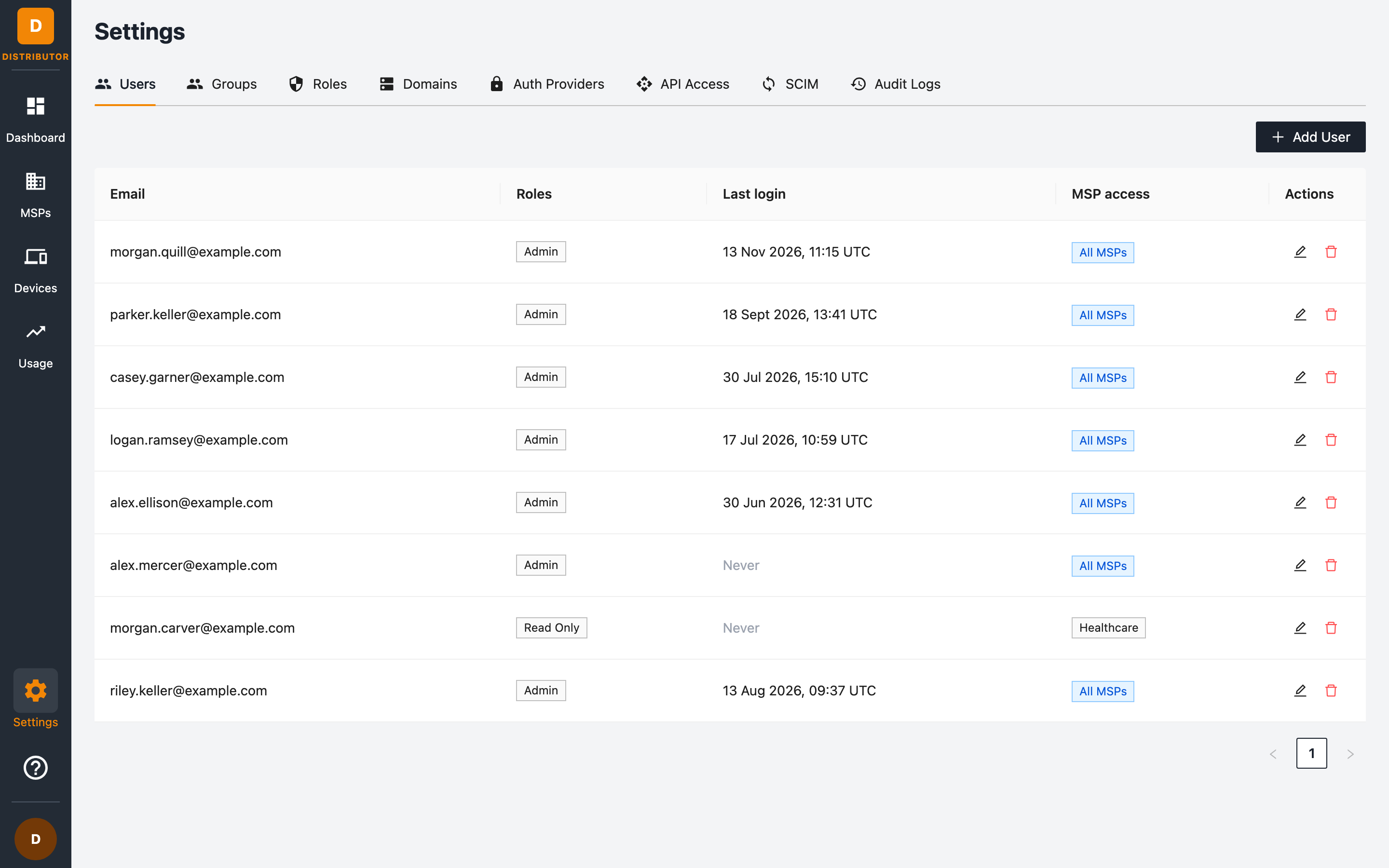
The users table
| Column | Meaning |
|---|---|
| The user's sign-in email address. | |
| Roles | The roles assigned to the user. |
| Last login | When they last signed in (or Never). |
| MSP access | The scope of MSPs they can see — All MSPs or a set of groups. |
Adding a user
- Go to Settings → Users and click + Add User.
- Fill in the dialog:
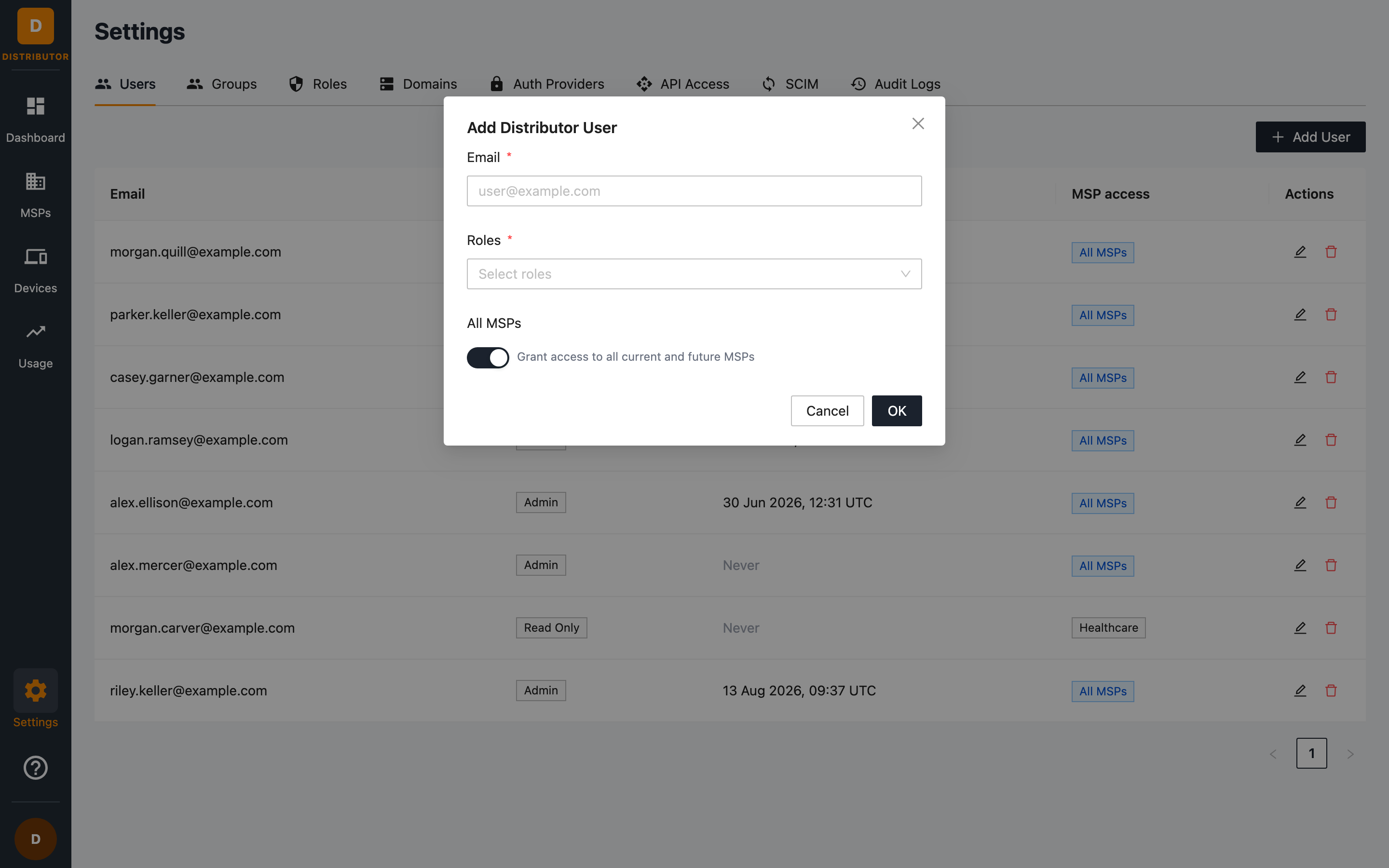
| Field | Description |
|---|---|
| Email (required) | The new user's email address. |
| Roles (required) | One or more roles. A user's effective permissions are the union of all their roles. |
| All MSPs | Leave the toggle on to grant access to all current and future MSPs. Turn it off to scope access to specific groups instead. |
| Groups | Shown when All MSPs is off — pick the groups whose MSPs the user may access. |
- Click OK. The user can now sign in with the distributor's auth provider.
Scoping access with groups
When a user is scoped to groups, they only see the MSPs inside those groups — on the MSPs, Devices and Usage pages, and via the API. This is ideal for regional teams or account managers who should only handle a subset of MSPs.
Editing and removing users
Use the edit button on a user's row to change their roles or MSP access, and the delete button to remove them. Removing a user revokes portal access immediately; it does not delete anything in the MSPs they managed.
You can also provision and deprovision users automatically from your identity provider — see SCIM Provisioning.