

MSPs
Managing MSPs
Updated: November 16, 2026
View, edit, launch into, suspend, and delete the MSPs under your distributorship.
The MSPs page lists every MSP under your distributorship, with a summary of totals (for example 2 MSPs · 2 clients) in the header.
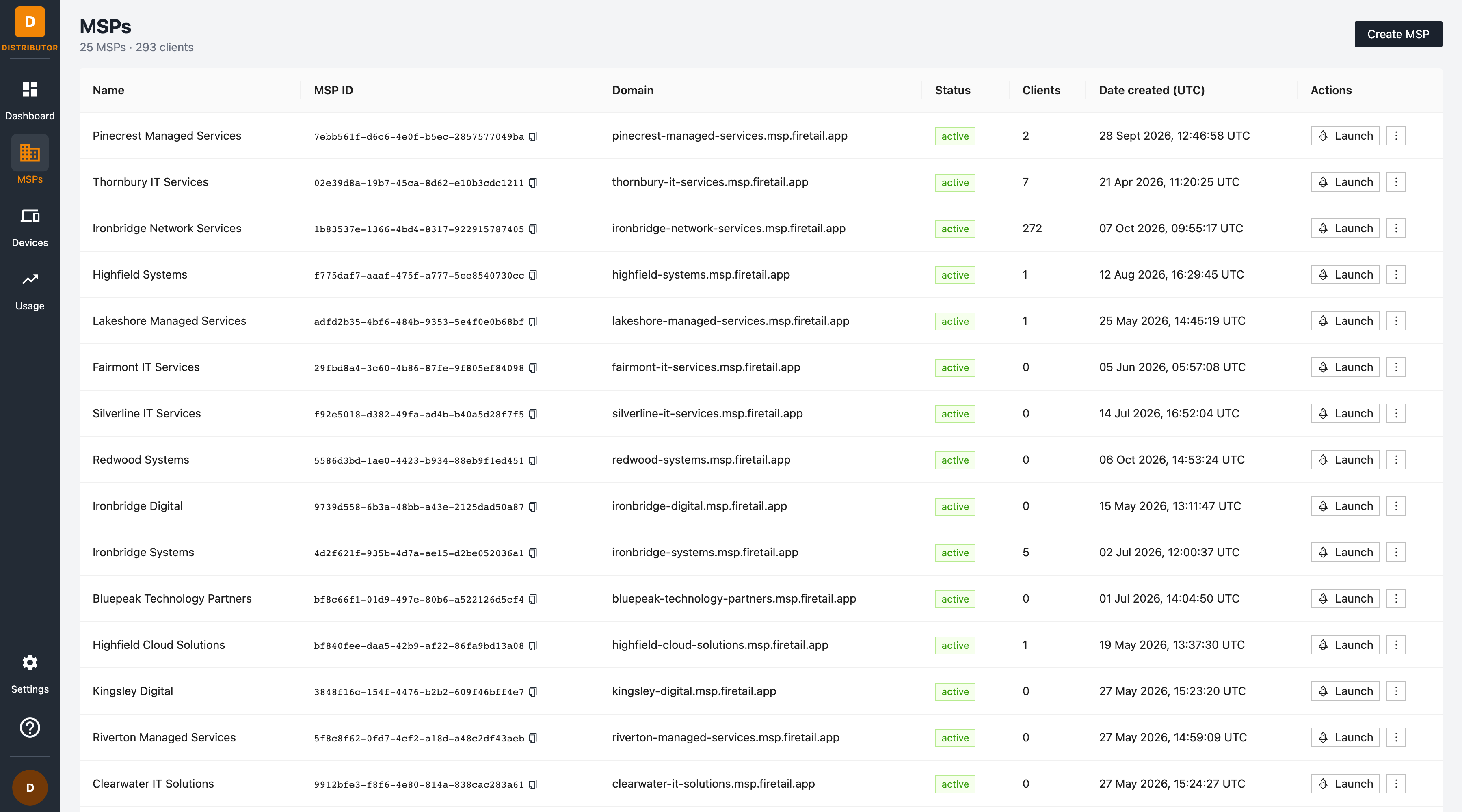
The MSPs table
| Column | Meaning |
|---|---|
| Name | The MSP's display name. |
| MSP ID | The unique identifier (UUID) of the MSP — use the copy button when raising support requests or calling the API. |
| Domain | The MSP's branded portal URL. Click it to open the MSP portal in a new tab. |
| Status | active or suspended. |
| Clients | How many client workspaces the MSP has created. |
| Date created (UTC) | When the MSP was provisioned. |
Launching into an MSP portal
Click Launch on an MSP row to jump straight into that MSP's own portal, authenticated as yourself. This is the fastest way to assist an MSP with configuration or troubleshooting without needing separate credentials.
How it works under the hood:
- Launch issues a one-time, short-lived handoff code (valid for 5 minutes) and opens the MSP portal in a new tab, where it starts a session.
- Your session in the MSP portal is limited to the role the MSP has granted its distributor (see below) — you act with that role's permissions, not unrestricted access.
- The MSP portal shows that the session was launched from the distributor, and the launch is recorded in both sides' audit logs.
Launching requires the Launch MSP Portal (
msp:launch) permission, and the MSP must have granted distributor access. Each MSP controls this from its own portal under Settings → Distributor Access — it can grant a specific role or block distributor access entirely ("No access").
Editing an MSP
Open the ⋮ (more) menu on an MSP row and choose Edit. The edit dialog has two tabs:
Details
Change the MSP's name, the products it can assign to its clients (Workforce / Workload), and its plans. Click Save changes.
Members
Manage which distributor-side users are members of the MSP:
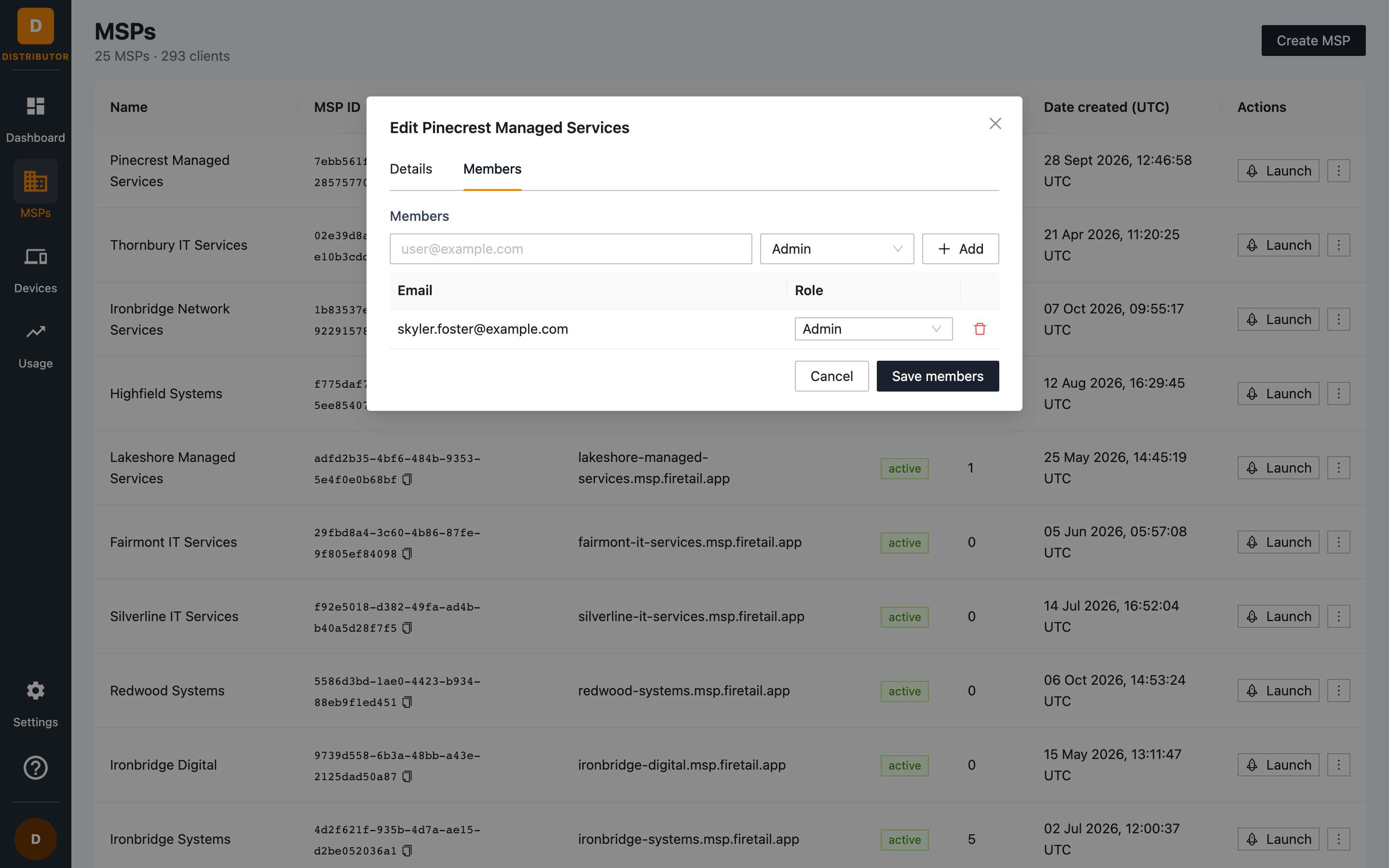
- Enter an email address, pick a role (for example Admin), and click Add.
- Change an existing member's role from the dropdown in the table.
- Remove a member with the delete button.
- Click Save members to apply your changes.
Suspending an MSP
Choose Suspend from the ⋮ menu to temporarily disable an MSP. Its status changes to suspended and its users can no longer use the MSP portal. To restore access, choose Reactivate from the same menu.
Deleting an MSP
Choose Delete from the ⋮ menu to permanently remove an MSP. This is destructive — the MSP's workspace, clients, and configuration are removed. Prefer Suspend if you might need to restore access later.
All of these actions are recorded in Audit Logs.