

Monitoring
Devices
Updated: November 16, 2026
Every device running the FireTail agent across your MSPs' clients, with its connection status and health.
The Devices page lists every device that reports to FireTail from the clients of all your MSPs.
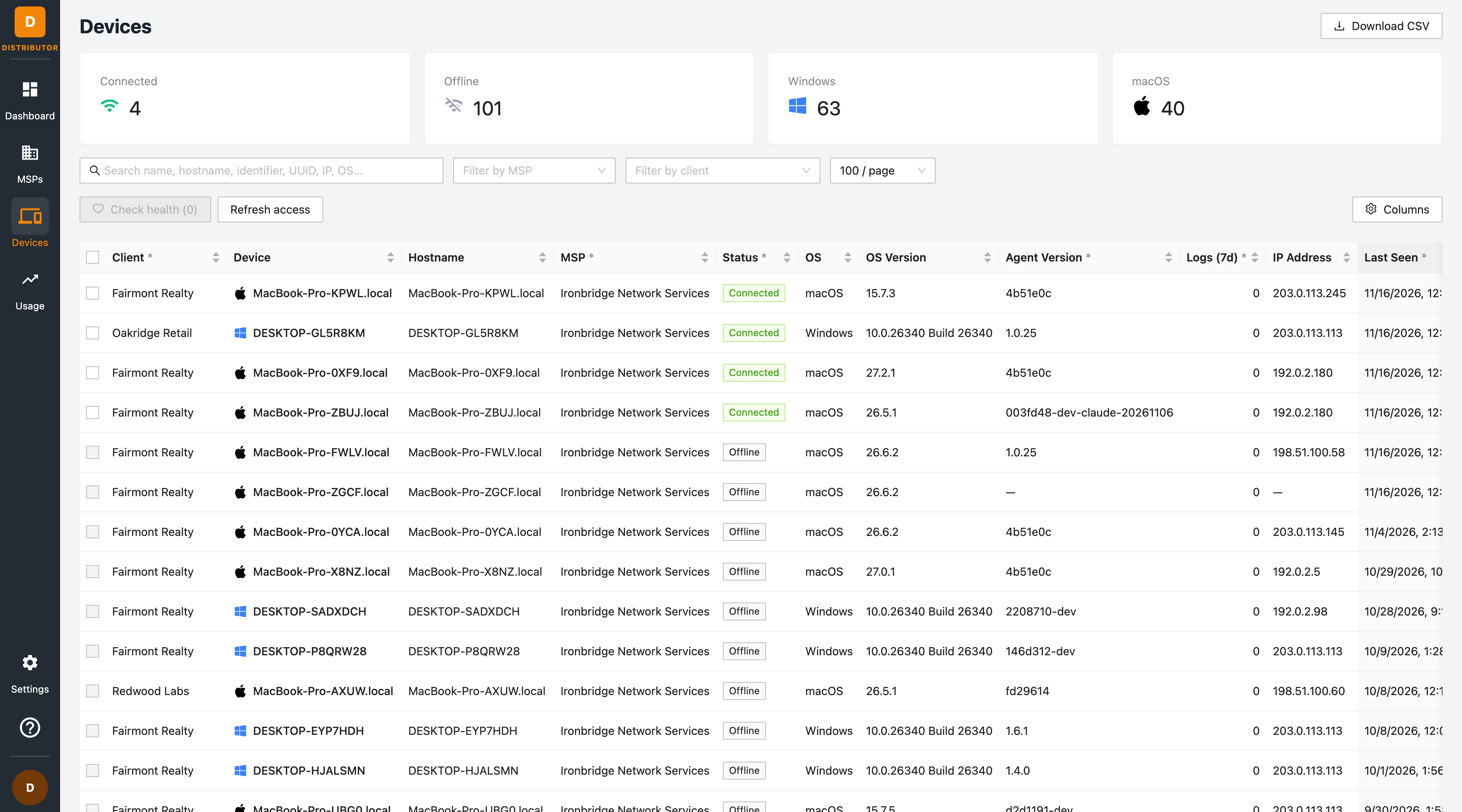
Summary cards
| Card | Meaning |
|---|---|
| Connected | Devices with a live connection to FireTail right now. |
| Offline | Devices that are not currently connected. |
| Windows / macOS | Devices per operating system. |
Finding devices
- Search by name, hostname, identifier, UUID, IP address or OS.
- Filter by MSP and Filter by client to narrow the list.
- Choose how many devices to show per page.
- Click Columns to show or hide columns.
The devices table
| Column | Meaning |
|---|---|
| Client | The client workspace the device belongs to. |
| Device | The device name, with an icon for its operating system. |
| Hostname | The device's hostname. |
| MSP | The MSP that manages the client. |
| Status | Connected or Offline. |
| OS / OS Version | The operating system and its version. |
| Agent Version | The version of the FireTail agent. |
| Logs (7d) | AI activity logs from the device in the last 7 days. |
| IP Address | The device's last known IP address. |
| Last Seen | When the device last reported. |
Checking device health
Select one or more connected devices and click Check health to ask their agents for a health report. The button shows how many devices are selected. Results appear when the agents reply.
Whether you can act on a device depends on the access its MSP has granted to the distributor. Click Refresh access to check again after an MSP changes that access.
Sending device events needs the device:send_event permission.
Exporting
Click Download CSV to export the devices for the current filters.