

Administration
Auth Providers
Updated: November 16, 2026
Configure how your team signs in — default FireTail auth or your own identity provider.
The Settings → Auth Providers tab controls the identity providers your users can sign in with.
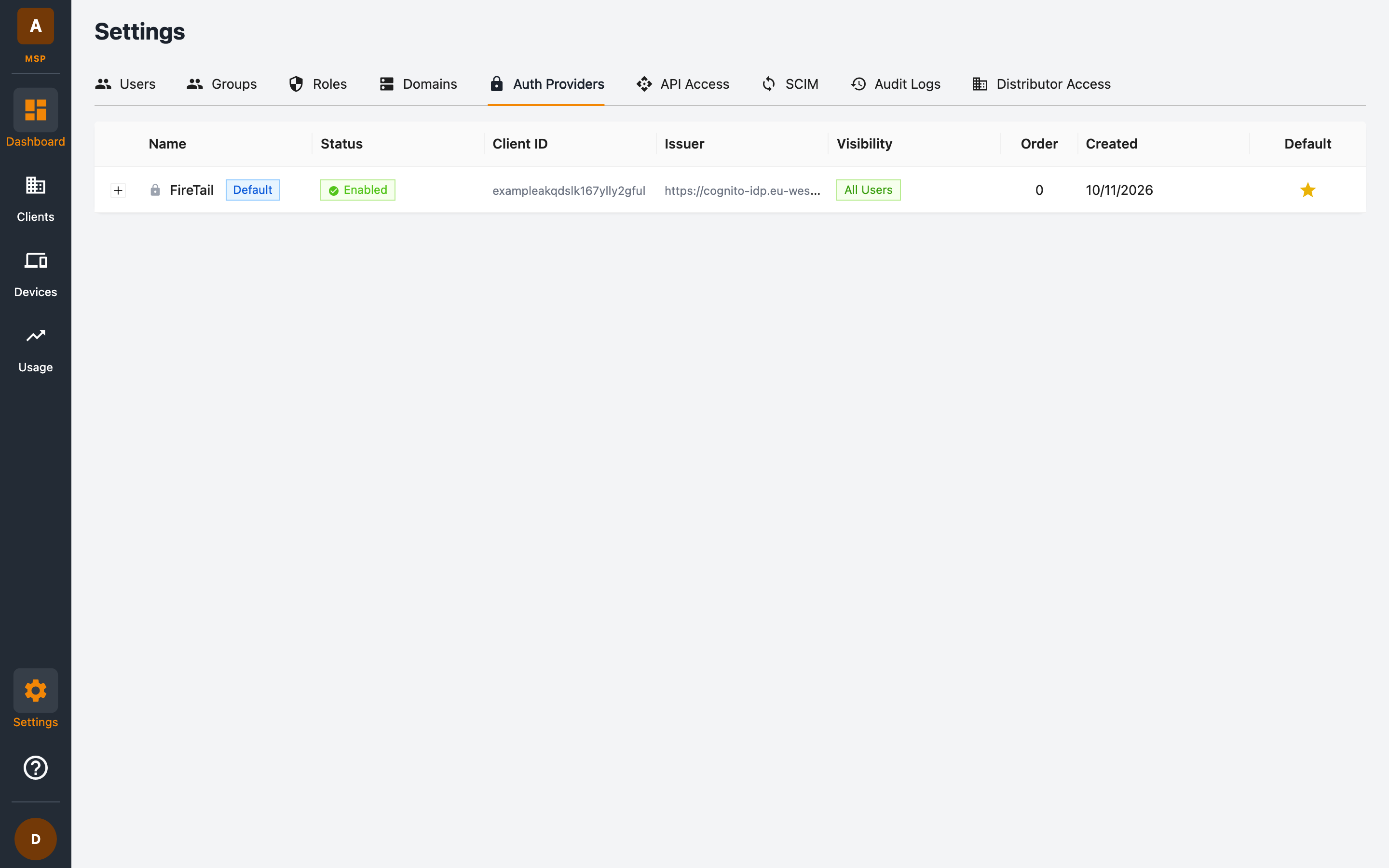
The default provider
Every MSP starts with the FireTail provider — a FireTail-managed sign-in that works out of the box. It is tagged Default and enabled for All Users.
The providers table
| Column | Description |
|---|---|
| Name | The provider's display name. The default provider is tagged Default. |
| Status | Enabled or Disabled. |
| Client ID | The OAuth/OIDC client ID for the provider. |
| Issuer | The OIDC issuer URL (for example a Cognito user pool endpoint). |
| Visibility | Who this provider is offered to at login (for example All Users). |
| Order | The display order of providers on your login page. |
| Created | When the provider was added. |
| Default | A star marks the current default provider. |
Click the expand arrow on a row to see the provider's full configuration.
Custom providers
You can have your own identity provider added so your team signs in with your corporate SSO. SAML and social-login federation are configured inside the identity provider itself; the MSP portal connects to it via OIDC.
Custom providers are enabled by FireTail. You cannot add, change, or remove a provider from the portal. Raise a service request with support@firetail.io. Once FireTail has enabled the provider, it appears in the providers table, where you can set it as the default, configure auto-provisioning, and review its auth links yourself.
Key behaviours to understand:
- First-login linking — a user account is bound to the auth provider they first sign in with. If they later try a different provider, they're shown a link challenge: they must sign in with their existing provider and approve the new one before it becomes active. See Account Linking.
- Admin fallback — admin users always retain access via the default FireTail provider, in addition to any custom providers, so you can't lock yourself out.
- Auto-provisioning — providers can optionally auto-provision new users on first login, so anyone who authenticates successfully through your IdP gets an account. Auto-provisioning can be restricted to specific email domains (for example only
@acme.comaddresses); if no domains are configured, all successfully-authenticated users are eligible.
Default provider and auto-provisioning controls
From the providers table you can:
- Set the default provider — the provider users are sent to when they visit your portal URL.
- Configure auto-provisioning per provider — toggle it on/off and manage the allowed email domains.
- Review auth links — expand a provider to see which users are linked to it, and remove stale links if needed.
Auto-provisioned users assigned the system Admin role receive access to All groups. Other roles retain group-restricted access. Under each provider, an Auto-provisioned badge identifies users created automatically by that provider. Older accounts with no recorded origin are not labelled automatically.
Pending link approvals
When a user signs in with a provider that isn't linked to their account yet, a pending link is created. The user can approve it themselves via the link challenge, or an administrator can approve or deny it centrally. Pending links protect accounts from being hijacked by an unverified sign-in method.
SSO authentication token
The authentication token type is managed in a separate administration portal. This portal automatically uses the configured token for sign-in and authenticated requests. The built-in FireTail Cognito provider uses ID tokens by default.
Sign out and sign in again after your administrator changes this setting.