

Clients
Managing Clients
Updated: November 16, 2026
Search, edit, suspend, and launch into your client workspaces.
The Clients page lists every client workspace under your MSP.
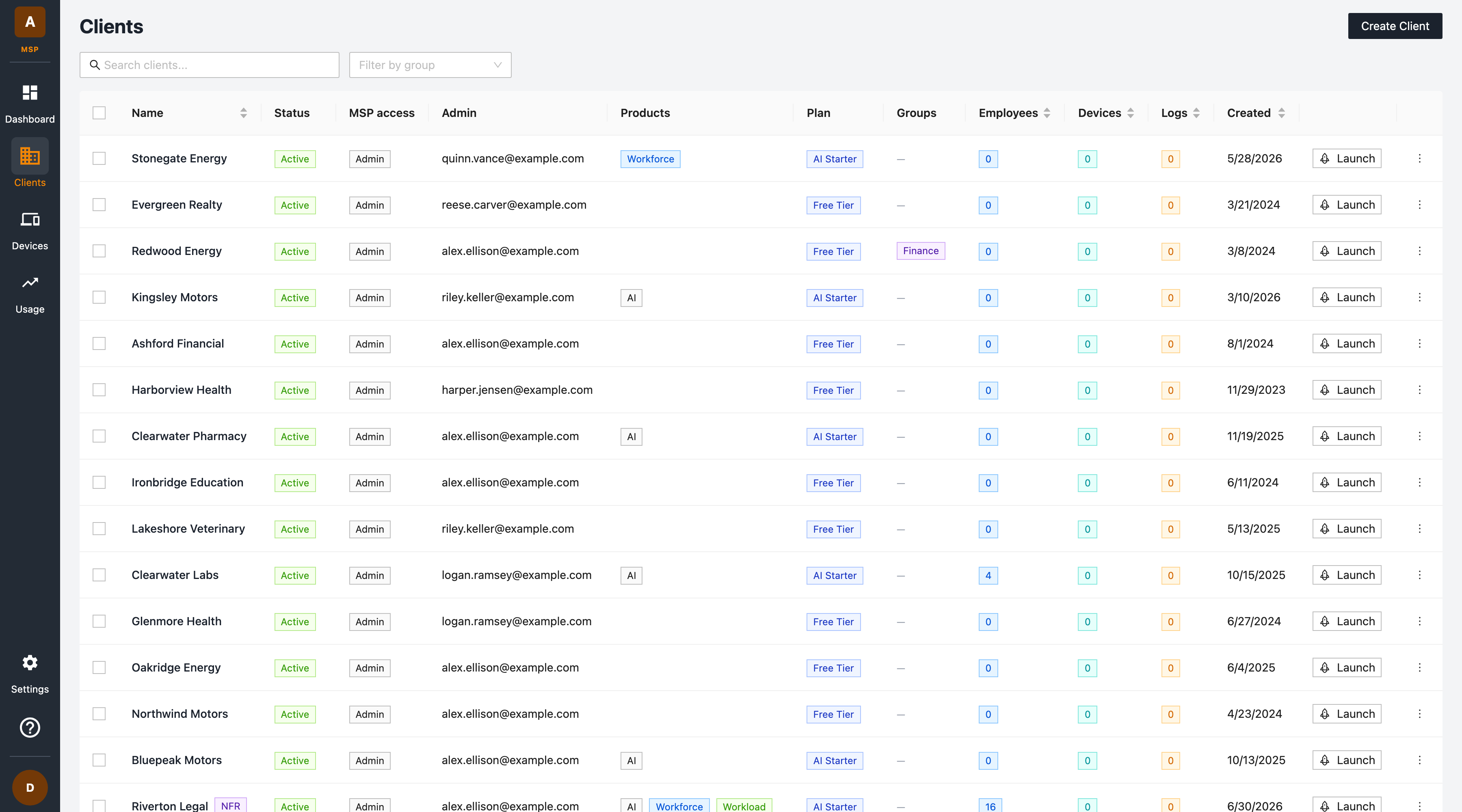
The client list
Each row shows:
| Column | Description |
|---|---|
| Name | The client's name. Click it to copy the client's UUID to your clipboard. An NFR tag marks a Not For Resale client, which is excluded from license usage. |
| Status | Whether the client is Active or Suspended. |
| MSP access | Your MSP's access to the client's workspace: Admin, Read-only, or No access. See Choosing MSP access. |
| Admin | The client's administrator email. |
| Products | The FireTail products enabled for the client (Workforce, Workload, AI). |
| Plan | The client's subscription plan (for example AI Starter, Free Tier). |
| Groups | The groups the client is assigned to. |
| Employees / Devices / Logs | Live counts of employees, devices, and AI activity logs for the client. |
| Created | The date the client workspace was created. |
Sortable columns (Name, Employees, Devices, Logs, Created) can be ordered by clicking the column header.
Searching and filtering
- Use the search box to find clients by name.
- Use Filter by group to narrow the list to clients in a specific group.
Launching into a client
Click Launch on a client row to open that client's FireTail platform workspace in a new tab. This takes you straight into the client's organisation, where you can configure their policies, integrations, and view their findings.
Launching needs Admin or Read-only MSP access to the client, and the client must be active — reactivate a suspended client first.
Editing a client
Open the ⋮ (more) menu on a client row. View shows the client's details, and Edit opens the edit dialog, where you can:
- Change your MSP access to the client.
- Change the admin email.
- Enable or disable products (Workforce / Workload).
- Change the plan.
- Assign or remove groups.
- Manage workspace members — add new members by email with a role, change an existing member's role, or remove them.
Suspending a client
Open the ⋮ (more) menu on a client row and choose Suspend. Suspending disables the client's workspace access without deleting any data. A suspended client cannot be launched or edited; choose Reactivate from the same menu to restore it.
Bulk actions
Use the checkboxes on the left of the list to select multiple clients, then:
- Edit n selected — change the selected clients together. Reactivate any suspended clients in the selection first.
- Reactivate n selected — reactivate the suspended clients in the selection.