

Administration
Distributor Access
Updated: November 16, 2026
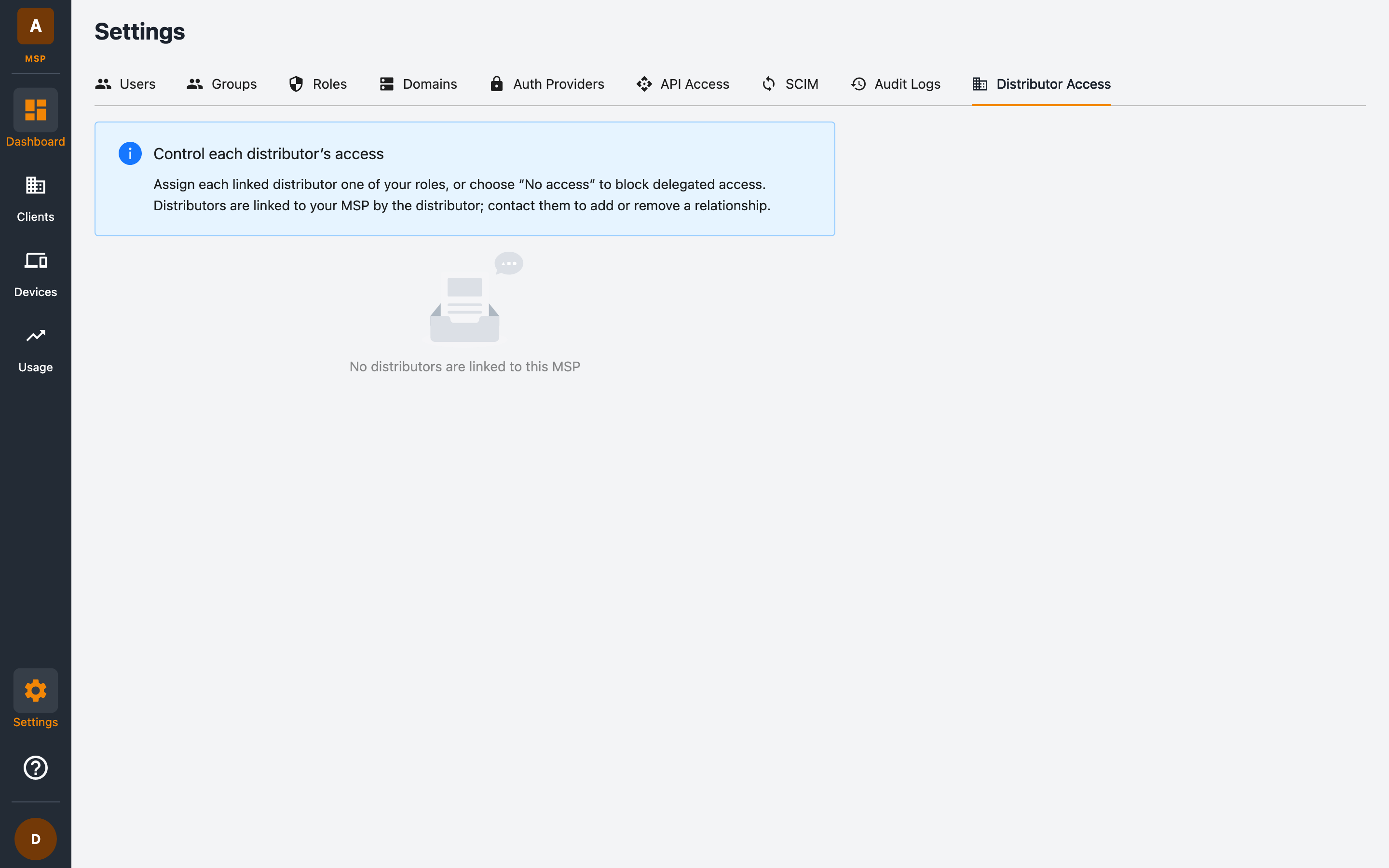
Control what your parent distributor can do in your MSP.
If your MSP is linked to a distributor (a partner that resells FireTail to multiple MSPs), the Settings → Distributor Access tab controls what each linked distributor is allowed to do inside your MSP.
How it works
The tab lists every distributor linked to your MSP. You grant each one one of your roles. When that distributor's staff act on your MSP, they are limited to that role's permissions — exactly as if they were one of your own users with that role.
Distributors are linked to your MSP by the distributor. Contact them to add or remove a relationship. If none is linked, the tab shows No distributors are linked to this MSP.
This also covers portal launches: distributor staff can "launch" from their own console straight into your portal, and any session started that way carries the granted role's permissions only. Launched sessions are clearly marked as coming from the distributor and appear in your audit logs.
| Setting | Effect |
|---|---|
| No access | The distributor is blocked entirely from your MSP. This is the most restrictive option. |
| A role (for example Read Only) | The distributor can act within that role's permissions only. |
This setting only affects the distributor. Your own users are never restricted by it.
Changing distributor access
- Go to Settings → Distributor Access.
- Beside the distributor, choose one of your roles — or No access to block it.
- Click Save.
Recommendations
- Grant Read Only if you want your distributor to help monitor usage and billing without being able to change anything.
- Create a custom role if you want to give the distributor a precise set of capabilities (for example usage viewing only).
- All distributor actions on your MSP appear in your audit logs, so you always have a record.