

Monitoring
Devices
Updated: November 16, 2026
See every device reporting from your clients and whether it is connected.
The Devices page lists the devices reporting from your clients' workspaces, across your whole MSP.
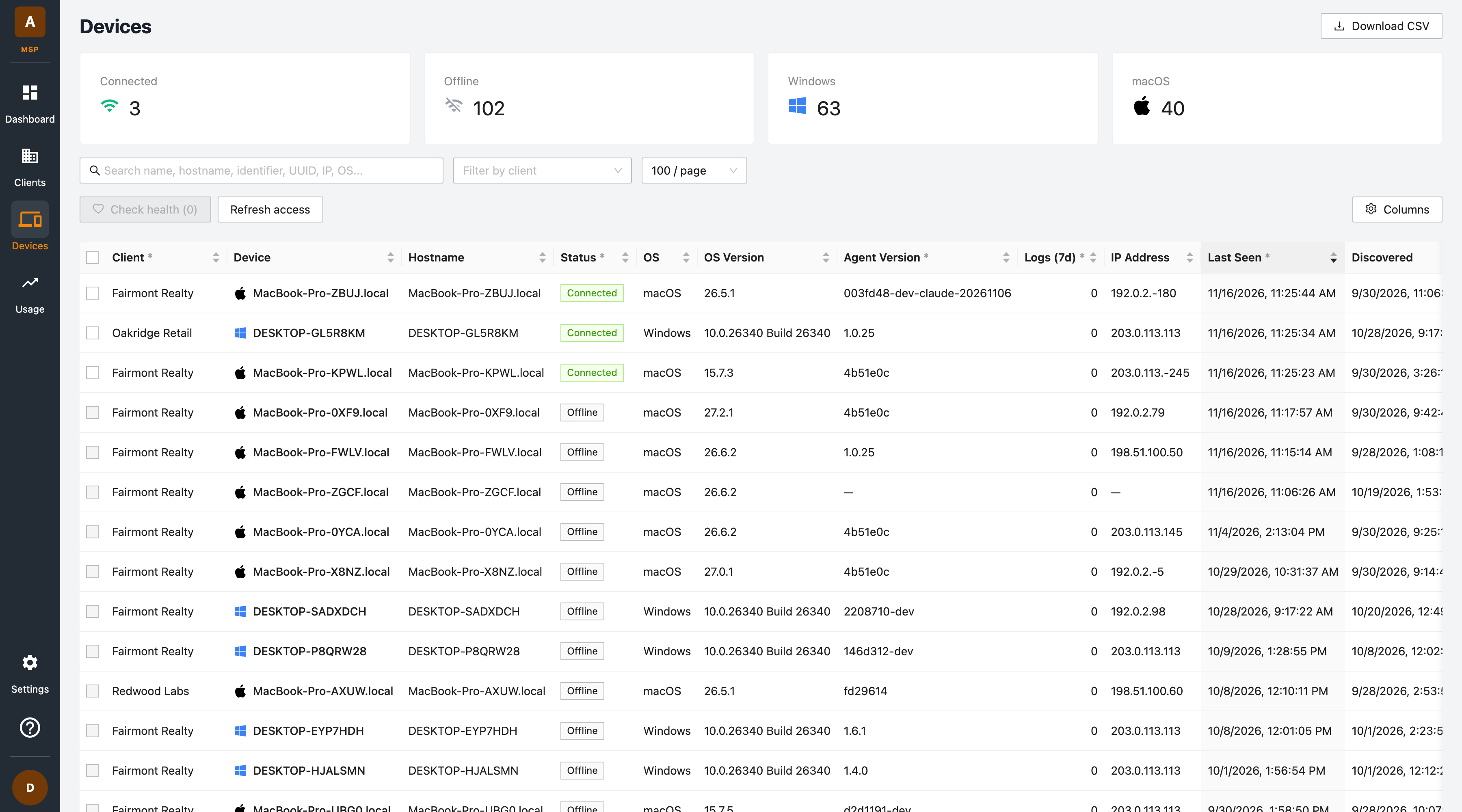
Summary cards
| Card | Meaning |
|---|---|
| Connected | Devices connected to FireTail right now. |
| Offline | Devices that are not currently connected. |
| Windows | Devices running Windows. |
| macOS | Devices running macOS. |
The device list
Each row is one device:
| Column | Description |
|---|---|
| Client | The client workspace the device belongs to. |
| Device | The device's name, with its platform icon. |
| Hostname | The device's hostname. |
| Status | Connected or Offline. |
| OS / OS Version | The operating system and its version. |
| Agent Version | The version of the FireTail agent on the device. |
| Logs (7d) | AI activity log events from the device in the last seven days. |
| IP Address | The device's last reported IP address. |
Click Columns to show or hide columns; further columns include Identifier, MAC Address, Discovered, and Updated. Most column headers sort the list. Columns marked with an asterisk sort within the current page only.
Searching and filtering
- Use the search box to find devices by name, hostname, identifier, UUID, IP address, or OS.
- Use Filter by client to show one client's devices.
- Use the page size selector to list between 50 and 1,000 devices per page.
Checking devices
Select one or more devices with the checkboxes, then click Check health to ask them to report their current state. Refresh access re-checks which devices your MSP can reach.
Exporting
Click Download CSV to export the devices matching your current search, filter, and sort order.