

Administration
Users & Access
Updated: November 16, 2026
Invite team members to your MSP portal and control what they can see and do.
Settings opens on the Users tab, followed by Groups, Roles, Domains, Auth Providers, API Access, SCIM, Audit Logs, and Distributor Access. You only see the tabs your role permits.
The Users tab manages your MSP team — the people who can sign in to your portal (not your clients' workspaces).
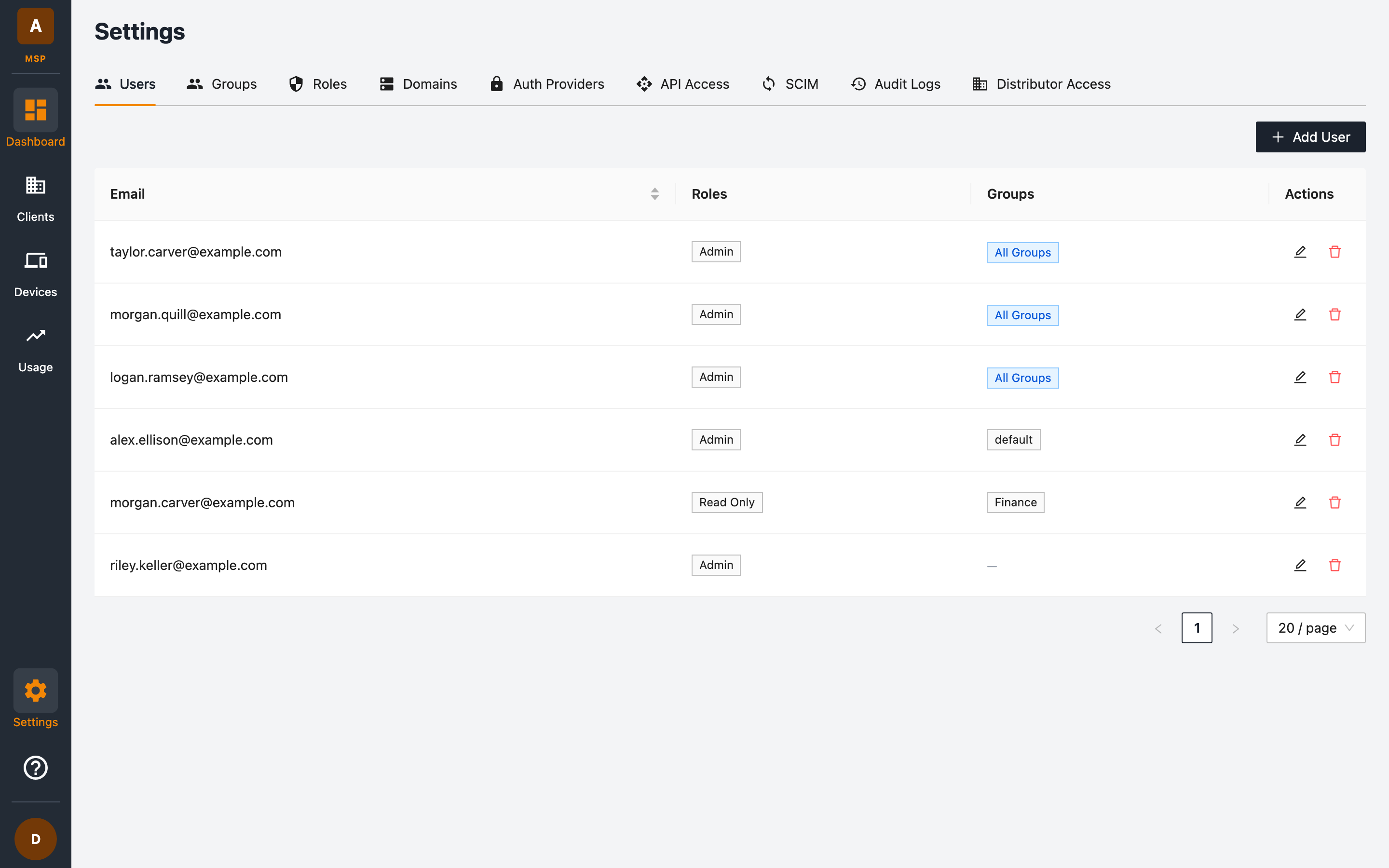
The users list
Each user row shows their email, assigned roles, and group access. Users with All Groups can see every client; others only see clients in their assigned groups.
Adding a user
- Go to Settings → Users.
- Click + Add User.
- Fill in the form:
| Field | Required | Description |
|---|---|---|
| Yes | The new team member's email address. | |
| Roles | Yes | One or more roles that define what the user can do. |
| All Groups | No | Toggle on to grant access to all current and future groups. |
| Groups | Yes, unless All Groups is on | The specific groups the user can access. |
- Click Add. The user can now sign in through your portal URL.
Editing and removing users
Use the edit (pencil) icon on a user row to change their roles or group access, or the delete (bin) icon to remove them from your MSP.
How access control works
Access in the MSP portal is the combination of two things:
- Roles answer "what can this user do?" — for example create clients, view usage, manage settings. See Roles & Permissions.
- Groups answer "which clients can this user see?" — a user only sees clients in groups they've been granted. See Groups.