

Clients
Creating a Client
Updated: November 16, 2026
Set up a new client workspace and choose what to protect.
A client is a customer organisation that you manage. Each client gets its own FireTail workspace with the products and plan you assign.
Create a client
- Go to Clients in the sidebar.
- Click Create Client.
- Fill in the Create Client form and click Create client.
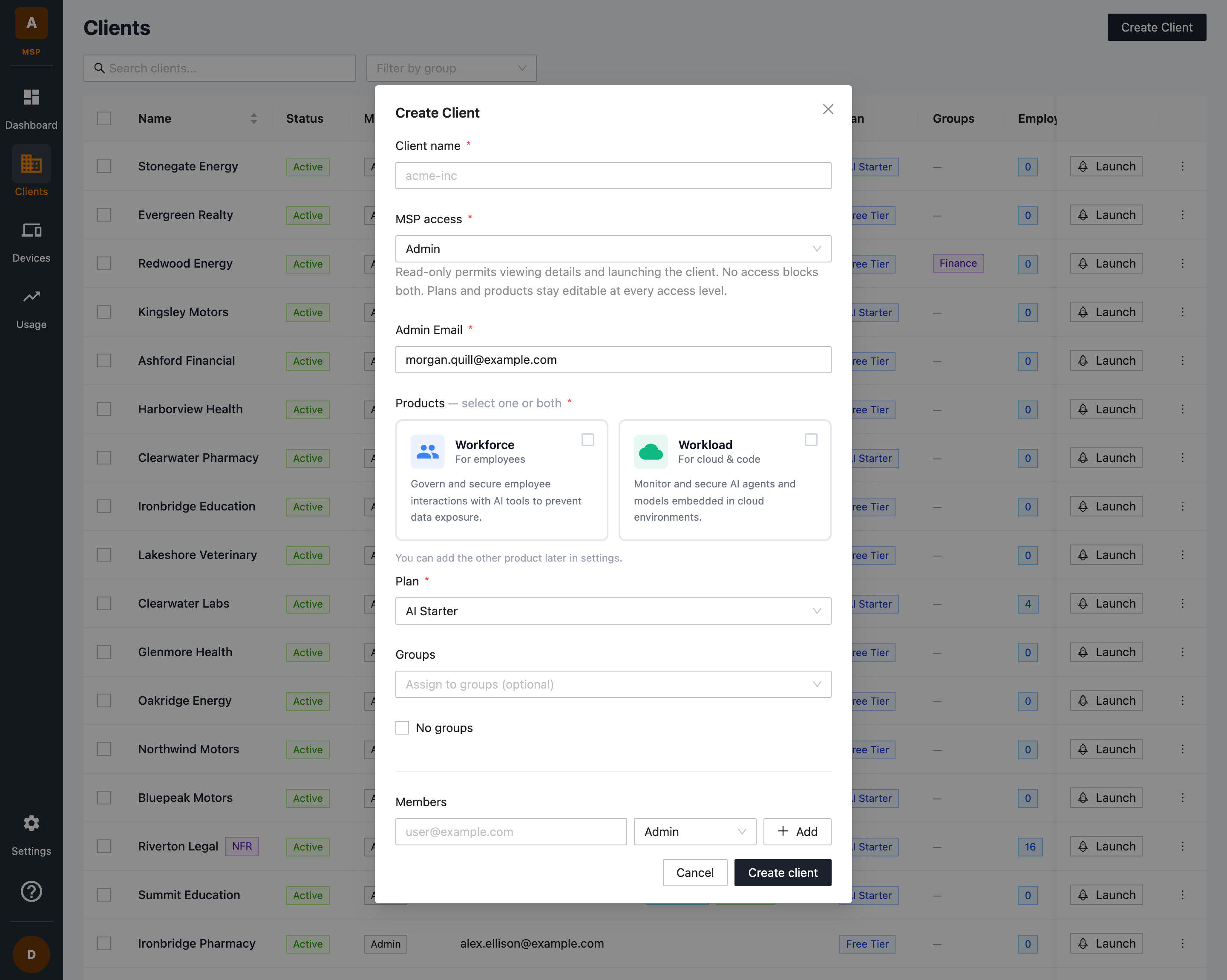
Form fields
| Field | Required | Description |
|---|---|---|
| Client name | Yes | The client's organisation name (for example acme-inc). |
| MSP access | Yes | What your MSP may do in the client's workspace: Admin, Read-only, or No access (see below). |
| Admin Email | Yes | The email address of the client's administrator. This person becomes the workspace admin. It starts as your own address. |
| Products | Yes | Select one or both FireTail products (see below). |
| Plan | Yes | The subscription plan for the client (for example AI Starter). |
| Groups | No | Assign the client to one or more of your groups, or tick No groups. |
| Members | No | Add additional workspace members by email, choose their role (for example Admin), and click Add. |
Choosing MSP access
MSP access sets how far your own team can reach into the client's workspace:
| Level | What your MSP can do |
|---|---|
| Admin | View the client's details, launch into its workspace, and change it. |
| Read-only | View the client's details and launch into its workspace. |
| No access | Neither view the details nor launch. |
Plans and products stay editable at every access level.
Choosing products
You choose what to protect when creating the client — and you can always add the other product later from the edit dialog:
- Workforce (for employees) — govern and secure employee interactions with AI tools to prevent data exposure.
- Workload (for cloud & code) — monitor and secure AI agents and models embedded in cloud environments.
After creation
The new client appears in the client list with an Active status. The admin you specified receives access to the client's FireTail workspace, and you can launch into it at any time using the Launch button on the client row.