

Administration
Roles & Permissions
Updated: November 16, 2026
Control what your team members can do with built-in and custom roles.
Roles bundle permissions together and are assigned to your MSP users. A user's effective permissions are the union of all their roles.
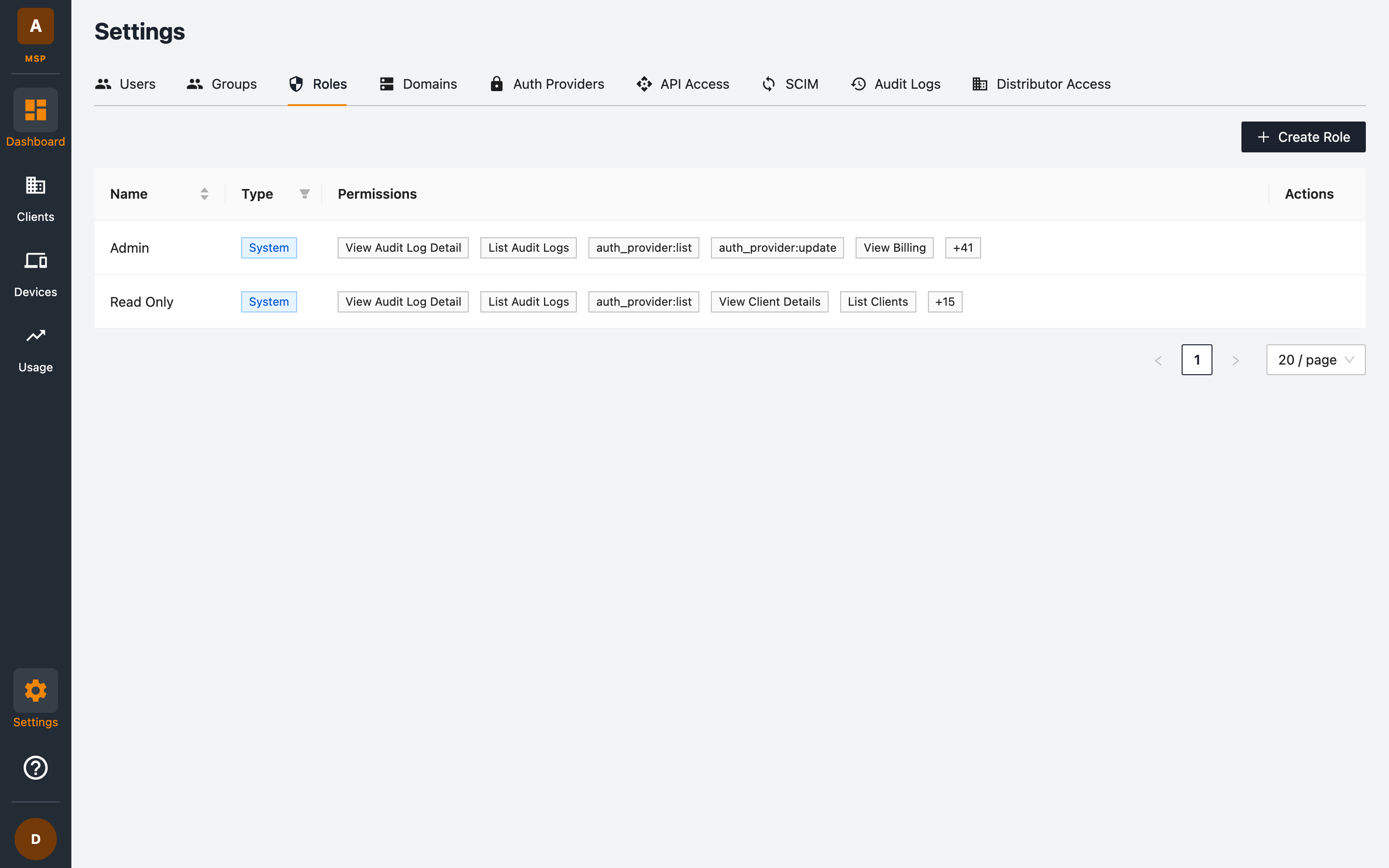
Built-in system roles
Two System roles are provided out of the box and cannot be deleted:
| Role | What it grants |
|---|---|
| Admin | Full access — every permission, including creating clients, managing users, roles, groups, auth providers, and settings. |
| Read Only | View-only access — list and view clients, audit logs, usage, and settings without the ability to change anything. |
Custom roles
If the built-in roles are too broad or too narrow, create your own:
- Go to Settings → Roles.
- Click + Create Role.
- Name the role and select the exact permissions it should include.
Custom roles appear alongside system roles with a Custom type. Use the Type filter on the roles table to separate system and custom roles.
Permissions
Permissions are fine-grained and follow a resource : action pattern. Examples visible in the roles table include:
- Clients — Create Clients, List Clients, View Client Details
- Audit logs — List Audit Logs, View Audit Log Detail
- Auth providers —
auth_provider:list,auth_provider:update
The table shows a role's first few permissions and a +n count of the rest; hover over it to see the full list.
Assigning roles
Roles are assigned when adding or editing a user. A user can hold multiple roles at once.
Tip: follow the principle of least privilege — give day-to-day operators a custom role with only the permissions they need, and reserve Admin for a small number of trusted users.