

Setup Guide
Updated: August 18, 2026
This guide will help you get started with FireTail by walking through the initial setup steps. Complete Steps 1-4 before continuing, as they form the foundation for using the platform effectively.
Setup and Access
Create your FireTail user account and organization to establish your workspace and access controls.
Step 1: Create an account
To get started, you'll need to create an account to access the FireTail platform.
- Go to firetail.app.
- In the top right, click Log In, then click Sign up on the login page.
- Enter an email address and password, or click Continue with Google to sign in with your Google account.
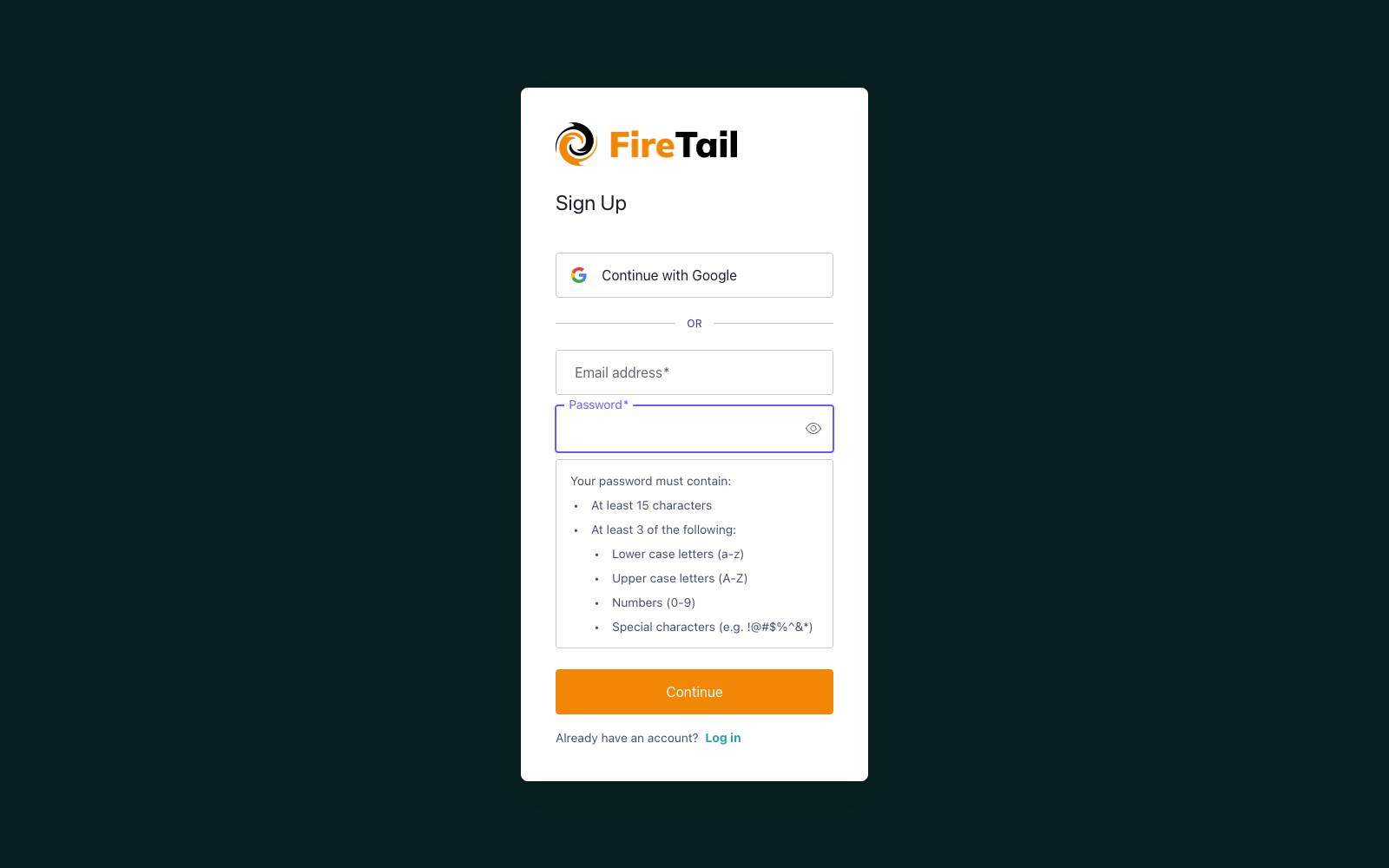
Follow the on-screen instructions to complete registration. For more information, see How do I create an account.
Step 2. Set up an organization
When your account is set up, the next step is to get an organization. Organizations act as isolated workspaces for managing users, projects, AI Workload integrations, alerts and more.
- Organizations are provisioned by the FireTail team — reach out to your account manager or FireTail support, or book an onboarding call via Start a Trial on the FireTail website.
- If your company already uses FireTail, ask an Organization Admin to add you as a member.
Note: Each organization is separate, and nothing is shared between them. Members added to one organization do not have access to others unless added separately.
Learn more:
Projects and Discovery
Create projects and begin discovering AI resources.
Step 3. Create a project
Projects are logical containers that help organize and manage resources within the platform.
- In the side menu go to Settings and select Projects.
- Click Create Project and enter the required details.
Note: Projects are necessary for discovering and creating resources within the platform.
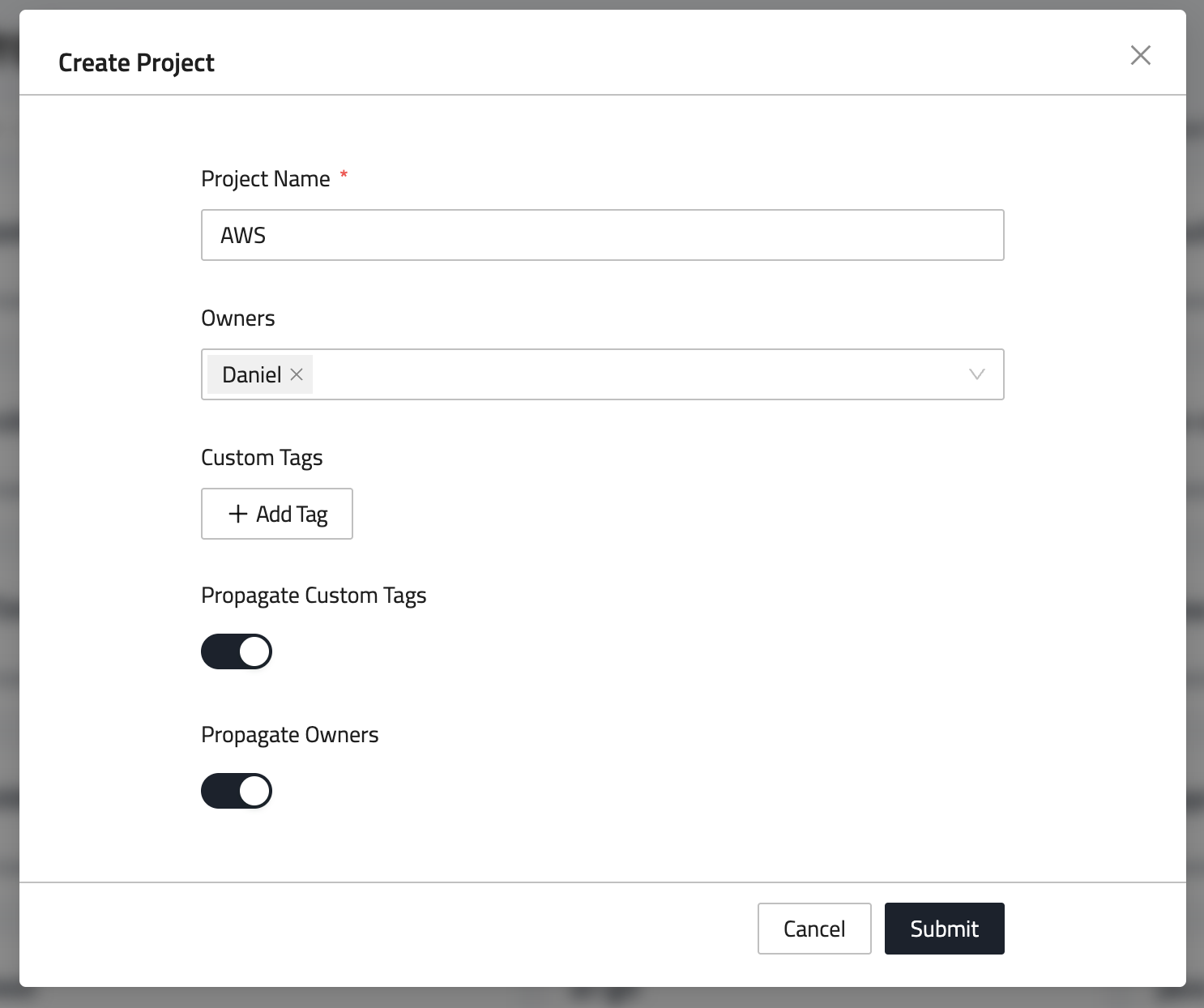
Learn more about projects here.
Step 4. AI resource discovery
Set up integrations to gain full visibility into your AI resources. FireTail supports automated discovery by connecting to your cloud environments and repositories.
AI Resource Discovery
FireTail organizes AI assets by provider (e.g., OpenAI, AWS Bedrock, Azure OpenAI) and captures key metadata, such as:
- Token usage
- Latency metrics
- Input/output schema formats
- Response types and safety configurations
This enables full lifecycle observability across AI-driven applications and helps surface potential risks related to model misuse, data leakage, or excessive token consumption.
To discover AI resources:
- Use the same Integrations section.
- Set up discovery for AI-related services within your cloud provider integrations (e.g., AWS, Azure OpenAI).
- FireTail will automatically detect and catalog supported AI resources.
Learn more:
Monitoring and Alerts
Configure notification channels and set up alert rules to stay informed.
Step 5. Create a notification integration
Set up notification integrations to receive alerts when specific conditions are met-such as anomalous behavior, threshold breaches, or AI model misuse.
FireTail supports a variety of notification channels to fit your workflows. You'll need at least one integration configured before creating alerts.
Learn more:
Step 6. Alerts
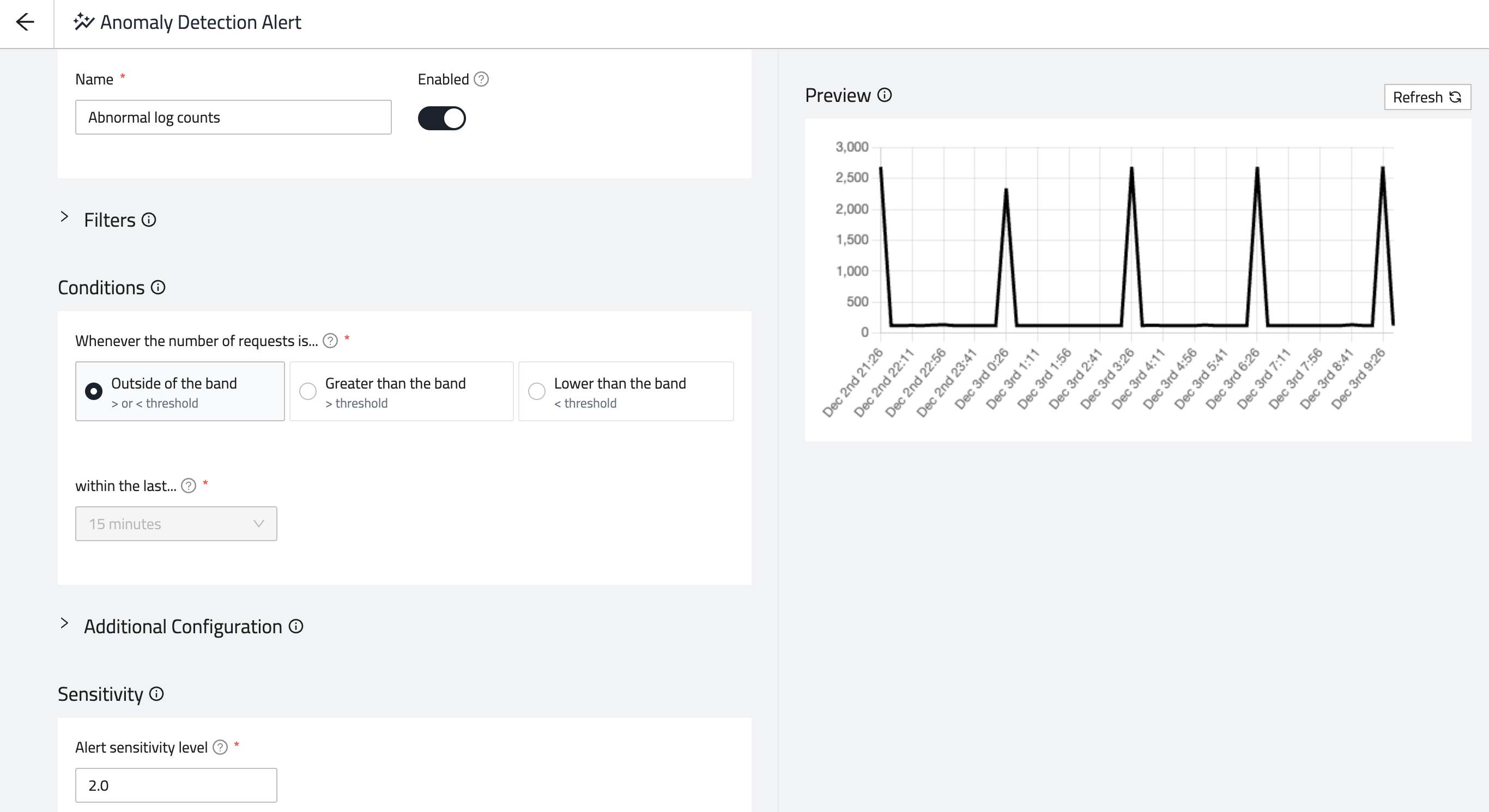
FireTail's alerting system enables you to monitor your AI environments for abnormal activity, policy violations, or predefined thresholds.
You can define two types of alerts:
- Static alerts: Triggered when fixed thresholds are met (e.g., number of failed auth attempts, response size).
- Anomaly alerts: Use historical data to detect unusual activity such as token spikes, suspicious inputs, or response anomalies from AI services.
FireTail also includes managed alert filters that automatically detect common risks such as:
- SQL injection attempts
- Authentication failures
- Secret exposure
- Unsafe AI model output or token overuse
- Suspicious geographies or traffic spikes
Logging
FireTail centralizes and enriches logs from various sources, including libraries, network resources, and integrations, to provide comprehensive visibility into your AI activity.
Step 7. Logging integrations
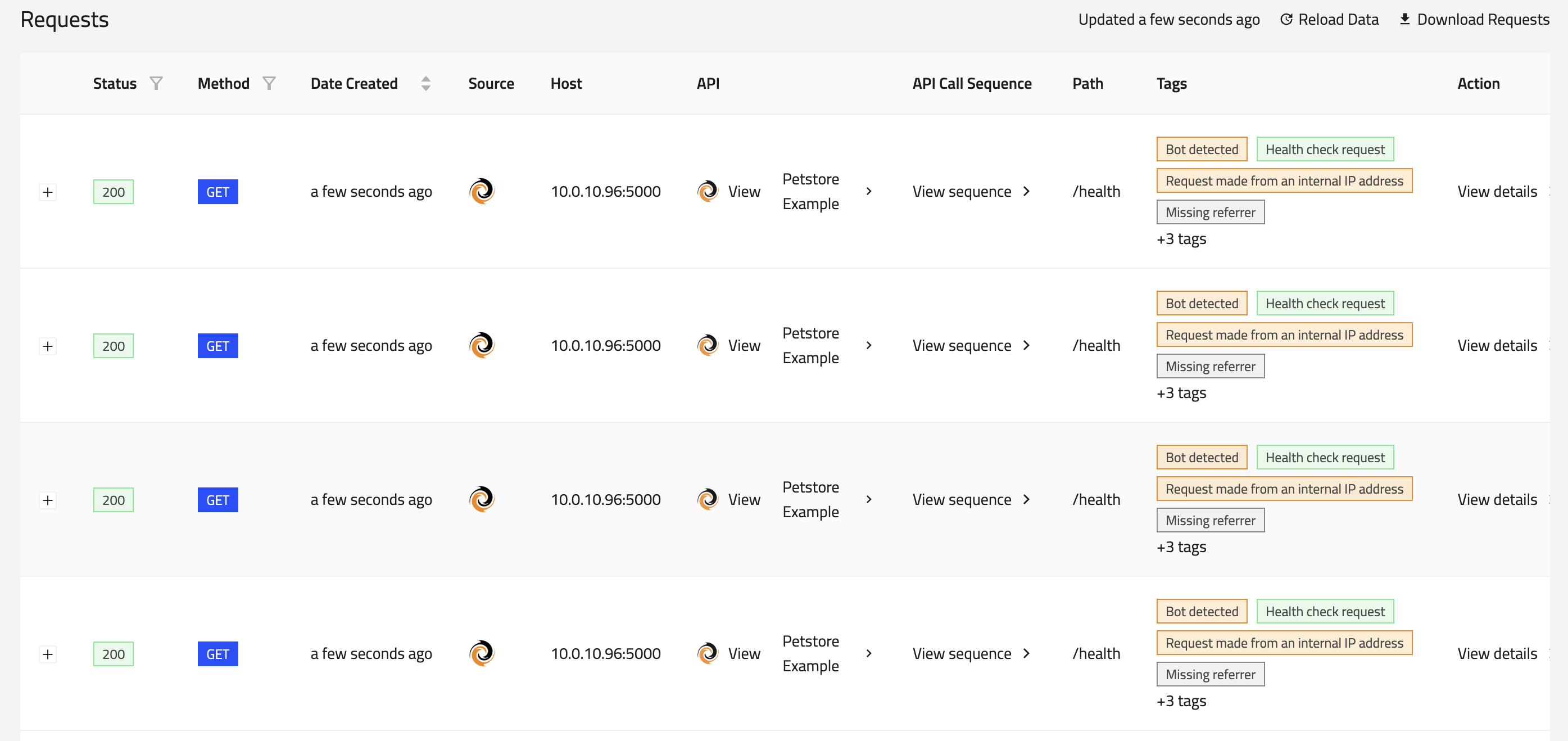
Connect FireTail with logging services to centralize and monitor traffic across your AI endpoints. Logs provide visibility into behavior, usage trends, and security events.
Learn more:
Summary
By following these steps, you'll have the FireTail platform set up and ready to manage AI resources, integrations, notifications, and more. Additionally, you'll be able to view findings, access reports, and configure model scans for automated tasks on your AI Models, among other features. For more comprehensive documentation, explore the available categories or visit specific sections linked above.