

Chrome Managed Deployment
Updated: May 20, 2026
Deploy the FireTail AI Monitor extension to Chrome across your organisation with managed configuration, so end users never interact with credentials directly.
Chrome uses chrome.storage.managed to deliver credentials to the extension. The extension reads this at startup; no user input is required.
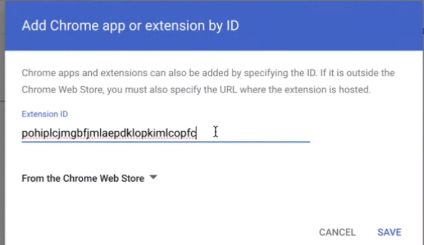
If you are deploying the browser extension from the ZIP file below, follow the steps for manual deployment below to find the Chrome extension ID. Otherwise, the Chrome extension ID is pohiplcjmgbfjmlaepdklopkimlcopfc.
 Download for Chrome
Configuration reference
| Key | Type | Required | Description |
|---|---|---|---|
firetailProjectToken |
string | Yes | FireTail project token. How to generate a project token |
firetailAPIRegion |
string | Yes | The region of the FireTail SaaS to use: eu or us |
macOS - Manual Deployment
- Download the ZIP file above and extract it.
- Visit chrome://extensions/ and toggle on Developer mode.
- Click Load unpacked, then select the extracted folder.
- Open Details for the newly added FireTail extension to locate the Chrome extension ID.
- Create a new file and paste in the plist fragment below.
- Replace
<CHROME_EXTENSION_ID>and<REGION>with your values. - Generate two UUIDs and replace both instances of
<GENERATED_UUID>. - Save as
chrome-firetail.mobileconfig.
- Replace
<?xml version="1.0" encoding="UTF-8"?>
<!DOCTYPE plist PUBLIC "-//Apple//DTD PLIST 1.0//EN" "http://www.apple.com/DTDs/PropertyList-1.0.dtd">
<plist version="1.0">
  <dict>
    <key>PayloadType</key>            <string>Configuration</string>
    <key>PayloadVersion</key>         <integer>1</integer>
    <key>PayloadScope</key>           <string>System</string>
    <key>PayloadIdentifier</key>      <string>com.firetail.chrome.extension</string>
    <key>PayloadUUID</key>            <string><GENERATED_UUID></string>
    <key>PayloadDisplayName</key>     <string>FireTail Chrome Extension Policy</string>
    <key>PayloadContent</key>
    <array>
      <dict>
        <key>PayloadType</key>        <string>com.apple.ManagedClient.preferences</string>
        <key>PayloadVersion</key>     <integer>1</integer>
        <key>PayloadIdentifier</key>  <string>com.firetail.extension.mcx</string>
        <key>PayloadUUID</key>        <string><GENERATED_UUID></string>
        <key>PayloadEnabled</key>     <true/>
        <key>PayloadContent</key>
        <dict>
          <key>com.google.Chrome.extensions.<CHROME_EXTENSION_ID></key>
          <dict>
            <key>Forced</key>
            <array>
              <dict>
                <key>mcx_preference_settings</key>
                <dict>
                  <key>firetailAPIRegion</key>
                  <string><REGION></string>
                </dict>
              </dict>
            </array>
          </dict>
        </dict>
      </dict>
    </array>
  </dict>
</plist>- Open a terminal and run the following command to ensure a clean installation:
sudo profiles remove -identifier com.firetail.chrome.extension. - Open
chrome-firetail.mobileconfigto install the FireTail Chrome Extension Policy.- You may be prompted to open System Settings to approve and complete installation.
- Run the following commands in a terminal, then reopen Chrome:
sudo killall cfprefsd
sudo killall "Google Chrome"
Google Admin Console
-
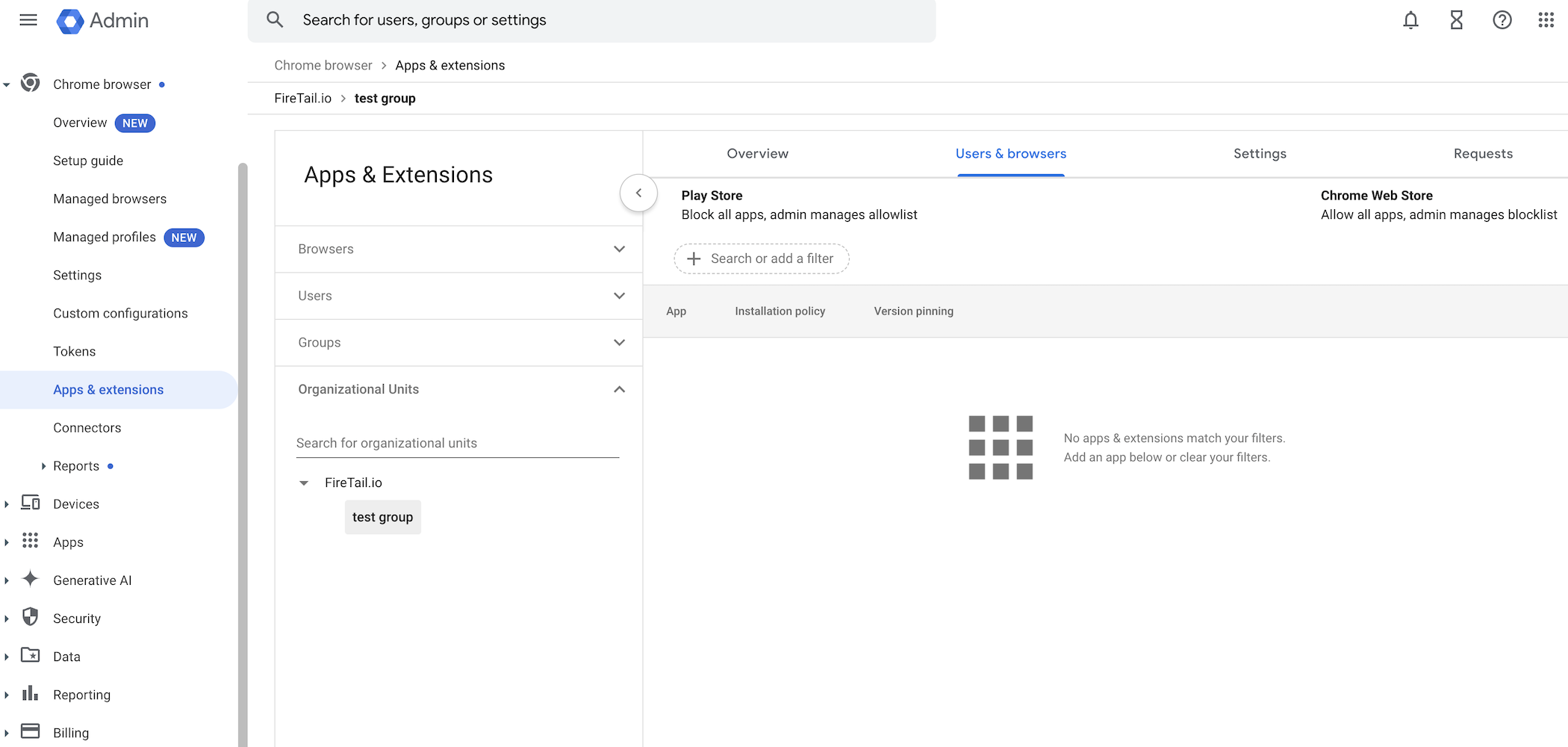
Visit https://admin.google.com and log in with an admin account.
-
In the left-side menu, click Chrome browser.
-
Select Apps & extensions.
-
On the Apps & extensions page, click the Users & browsers tab.
-
To add the extension:
- Click the yellow plus icon (➕) in the bottom-right corner.
- Click Add Chrome app or extension by ID.
-
Paste the extension ID.
-
Click Save.
-
(Optional) You can deploy the extension selectively by Organizational unit.
- Create Organizational units with users grouped by department, role, or team.
- Assign the FireTail AI Monitor extension to relevant Organizational units.
- Learn how to add an organizational unit. Learn how to Add an organizational unit in Google's help center.
The extension will appear in your list as FireTail AI Monitor.
Configure the extension
- Click the now added FireTail AI Monitor.
- Under Installation Policy, select Force install (recommended).
- Or select Force install and pin to toolbar to display the FireTail icon in the browser.
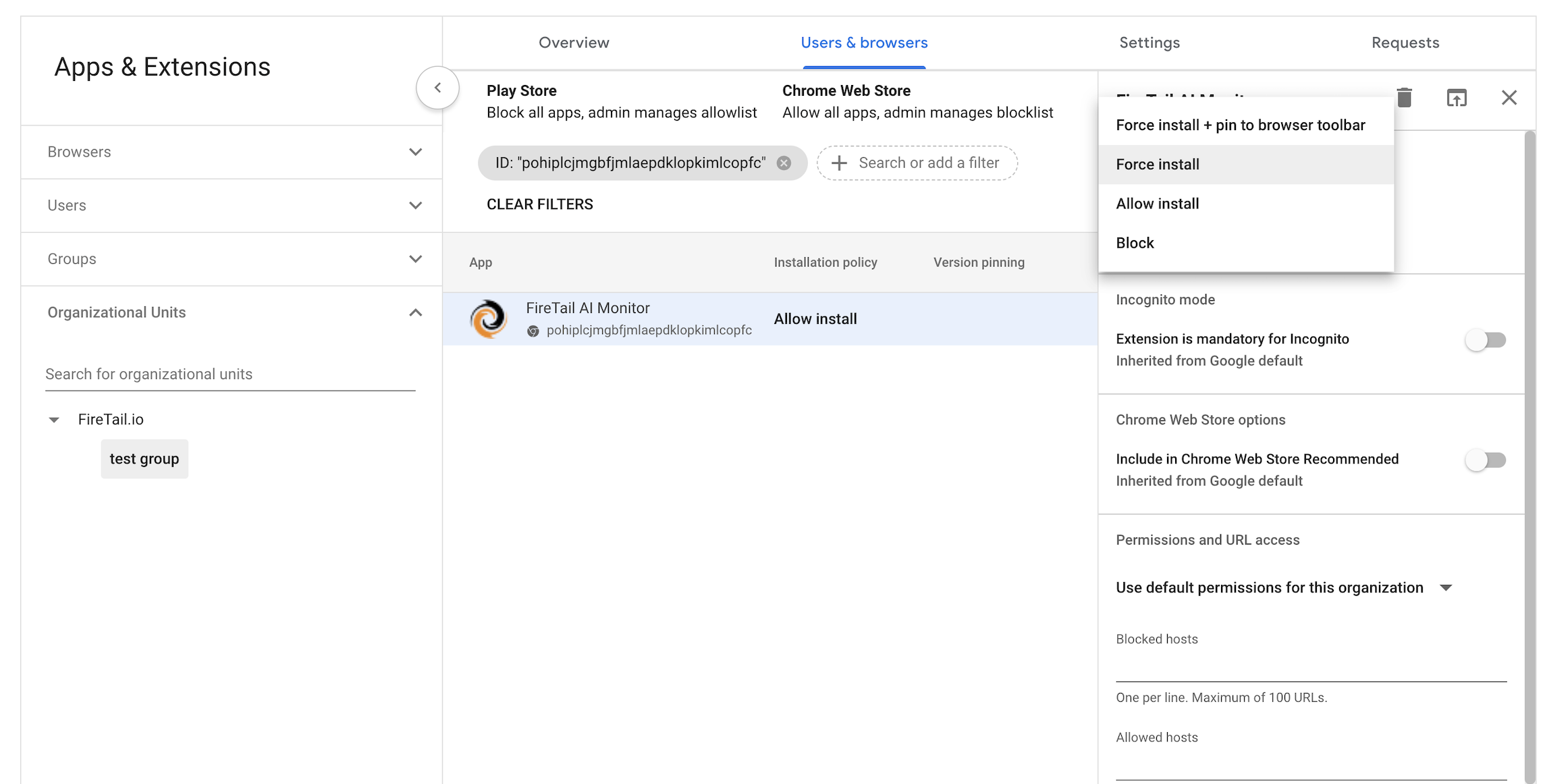
- Enable Extension is mandatory for Incognito if you want it to run in Incognito Mode.
- Add the extension policy by pasting the following JSON into the Policy field:
{"firetailProjectToken": {"Value": ""}, "firetailAPIRegion": {"Value": "eu"}} Notes on the JSON Policy
- No line breaks – paste the JSON as a single line.
If uploading a file:
- Must be UTF-8 encoded.
- Must not include a BOM (Byte Order Mark).
The Google Admin Console will not display errors if your JSON is incorrect.
Windows - Intune
In Intune, create a Settings catalog configuration profile for Windows 10 and later, targeting Google Chrome. Add the Control which extensions are installed silently (ExtensionInstallForcelist) setting with the following value:
<CHROME_EXTENSION_ID>;https://clients2.google.com/service/update2/crxThen add a custom OMA-URI for the managed credential payload:
- OMA-URI:
./Device/Vendor/MSFT/Policy/Config/Chrome~Policy~googlechrome~Extensions~ExtensionSettings - Data type: String
- Value:
{
  "<CHROME_EXTENSION_ID>": {
    "installation_mode": "force_installed",
    "update_url": "https://clients2.google.com/service/update2/crx",
    "toolbar_pin": "force_pinned",
    "managed_configuration": {
      "firetailProjectToken": "<PROJECT_TOKEN>",
      "firetailAPIRegion": "<REGION>"
    }
  }
}
Assign the profile to your device or user groups and sync.
Windows - Group Policy
- Download the Chrome ADMX templates from Google and copy them to your central policy store.
- In Group Policy Management Console, navigate to:
Computer Configuration -> Administrative Templates -> Google Chrome -> Extensions - Enable Configure extension management settings and paste:
{
  "<CHROME_EXTENSION_ID>": {
    "installation_mode": "force_installed",
    "update_url": "https://clients2.google.com/service/update2/crx",
    "toolbar_pin": "force_pinned",
    "managed_configuration": {
      "firetailProjectToken": "<PROJECT_TOKEN>",
      "firetailAPIRegion": "<REGION>"
    }
  }
}- Run
gpupdate /forceon a test device and restart Chrome.
macOS - Jamf Pro
Deploy a configuration profile via your MDM (Jamf Pro, Intune, or Workspace ONE) targeting the com.google.Chrome domain. Set the scope to device-level so users cannot remove the extension.
Example plist fragment:
<key>ExtensionInstallForcelist</key>
<array>
  <string><CHROME_EXTENSION_ID>;https://clients2.google.com/service/update2/crx</string>
</array>
<key>3rdparty</key>
<dict>
  <key>extensions</key>
  <dict>
    <key><CHROME_EXTENSION_ID></key>
    <dict>
      <key>firetailProjectToken</key>
      <string><PROJECT_TOKEN></string>
      <key>firetailAPIRegion</key>
      <string><REGION></string>
    </dict>
  </dict>
</dict>
Linux - JSON policy files
Create the following files as root with permissions root:root / 0644.
/etc/opt/chrome/policies/managed/firetail-install.json:
{
  "ExtensionInstallForcelist": [
    "<CHROME_EXTENSION_ID>;https://clients2.google.com/service/update2/crx"
  ]
}/etc/opt/chrome/policies/managed/firetail-config.json:
{
  "3rdparty": {
    "extensions": {
      "<CHROME_EXTENSION_ID>": {
        "firetailProjectToken": "<PROJECT_TOKEN>",
        "firetailAPIRegion": "<REGION>"
      }
    }
  }
}
Verifying the deployment
- On a target device, open
chrome://policy. ConfirmExtensionInstallForcelistis present and the3rdpartyblock for the FireTail extension shows status OK. - Open
chrome://extensions. The FireTail AI Monitor should be installed and not removable by the user. - Open the extension's service worker console and run:
chrome.storage.managed.get(null).then(console.log)You should see the exact payload you pushed.
- Interact with an AI provider and confirm events appear in the FireTail platform.