
Google Cloud Inventory Scanning
Updated: October 22, 2026
Integrating with Google Cloud inventory scanning enables the scanning of AI resources in Google Cloud to populate into the FireTail platform.
The Google Cloud Inventory Scanning integration enables FireTail to automatically discover and monitor AI resources within your Google Cloud environment. By connecting FireTail with Google Cloud through IAM roles and services, FireTail scans your environment pulling AI data using service accounts and workload identity federation. Discovered resources are then populated into your selected FireTail project. The integration can be set up manually via the Google Cloud Console or through a script executed in Google Shell.
Manual deployment
- In the side menu, go to Settings, then select Integrations.
- Open Available. Filter by selecting the Discovery category.
- Select Google Cloud Inventory Scanning.
- In the My Integration field, enter a name for the integration. The integration is Enabled by default. Toggle off to make inactive.
- Log in to the Google Cloud console.
- Create a project if you do not have one already created. Learn How to create a project.
- Copy the Project number, paste this value into the Google Project Number field in the FireTail platform.
Note: The Project number is a numerical value and should not be confused with the Project ID.
-
Create a Service account:
- Open IAM & Admin. This can be found by using the search bar, or from the menu.
- Select Service Accounts from the left menu. Click Create Service Account.
- Under Service account details, enter a name for the service account. Click Create and Continue.
- Under Grant this service account access to project, the following roles must be included, this adds the necessary permissions to the Service account:
- Vertex AI Viewer (
roles/aiplatform.viewer) - Logs Viewer (
roles/logging.viewer) - Private Logs Viewer (
roles/logging.privateLogViewer) - Workload Identity User (
roles/iam.workloadIdentityUser)
- Vertex AI Viewer (
These roles grant the following permissions, which FireTail uses to discover and monitor your Vertex AI resources:
Permission Role Purpose aiplatform.models.listroles/aiplatform.viewerList models in the Vertex AI Model Registry aiplatform.models.getroles/aiplatform.viewerRetrieve the details of a model by ID logging.logEntries.listroles/logging.viewerRead StreamGenerateContentaudit logs (last 30 days)logging.privateLogEntries.listroles/logging.privateLogViewerRead Vertex AI Data Access audit logs
-
Click Done.
-
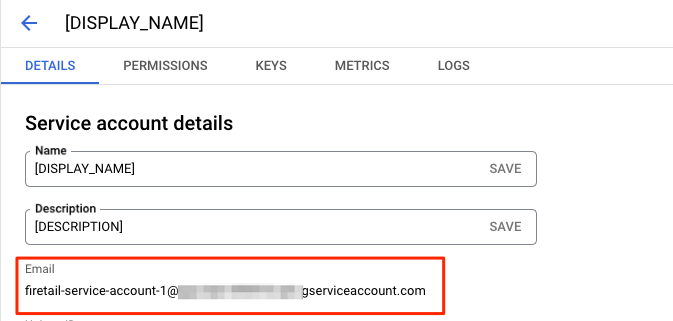
Copy the Service account email and paste it into the Google Service account field in the FireTail platform. The Service account email can be found in the Service account details. Click the Service account to view.
-
Return to Google Cloud console when done.
-
Create a Workload identity pool:
-
Select Workload Identity Federation from the left menu. Click Create Pool.
-
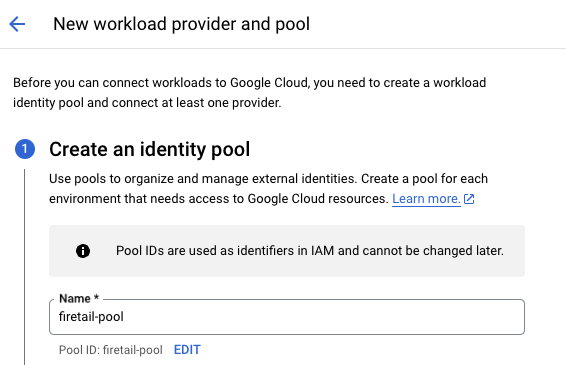
Under Create an identity pool, enter firetail-pool into the name field. The Pool ID field is automatically populated.
-
Return to Google Cloud console and click Continue.
-
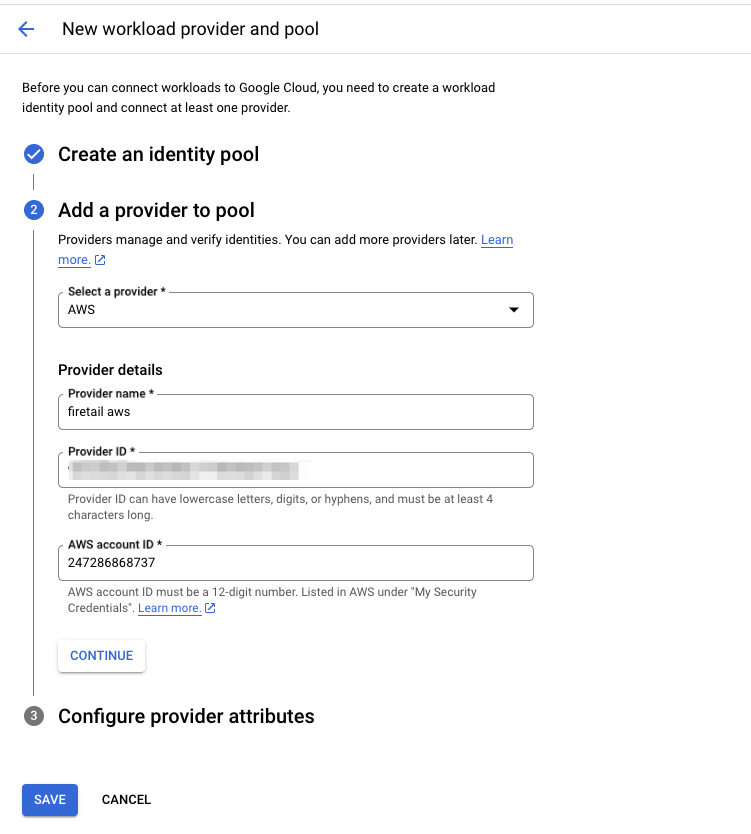
Under Add a provider to pool, select AWS from the dropdown menu.
-
Return to the FireTail platform, copy the ORG UUIDfrom the script. Paste this value into the Provider Name in Google cloud, the Provider ID automatically populates with the same value.
-
In the FireTail platform copy the AWS account ID from the script. The account ID is 247286868737. Paste this ID into Google Cloud console in the AWS account ID field.
-
Click Continue.
-
Under Configure provider attributes, click Edit Mapping. The provider attributes should be mapped as follows:
- google.subject - assertion.arn
- attribute.aws_role - assertion.account
-
Click Save.
-
-
Open the Workload Identity Federation page for the pool you have created. Click the Activate Cloud Shell Icon. The Cloud shell terminal opens.
-
Run the following script in the terminal:
gcloud iam service-accounts add-iam-policy-binding ${SERVICE_ACCOUNT_EMAIL} \
--role roles/iam.workloadIdentityUser \
--member "principalSet://iam.googleapis.com/projects/${CURRENT_PROJECT_NUMBER}
/locations/global/workloadIdentityPools/${POOL_NAME}/*"
Note: in the below script, replace the ${SERVICE_ACCOUNT_EMAIL} with the service account email you have created (this can be found in the service account details), replace ${CURRENT_PROJECT_NUMBER} with the project number and replace ${POOL_NAME} with firetail-pool
-
Go to the Security Token Service API and click Enable (if its not already enabled).
-
Go to the IAM Service Account Credentials API and click Enable (if its not already enabled).
-
Enable Vertex AI Data Access audit logs:
- Go to the Audit Logs page. This can also be found by opening IAM & Admin and selecting Audit Logs from the left menu.
- In the Data access audit logs configuration table, click on Vertex AI API.
- In the Log types panel, tick Data Read and Data Write.
- Click Save.
Note: Data Access audit logs are not enabled by default in Google Cloud. Without them, FireTail cannot see Vertex AI model usage, so prompt and response activity is not populated into the platform.
-
Return to the Google Cloud Inventory Scanning integration form in the FireTail platform to complete the integration.
-
Select a project from the dropdown, or click Create to create a new project. When you complete the integration this adds the discovered resources under the project that you choose. Learn more about projects here.
-
Enter a Scan Frequency. This is how often the scan is done in hours, minimum is 24 hours.
-
Click Submit.
The discovered AI resources can be viewed going to Workload in the side menu.
Deploy using Google Shell
- In the side menu, go to Settings, then select Integrations.
- Open Available. Filter by selecting the Discovery category.
- Select Google Cloud Inventory Scanning.
- In the My Integration field, enter a name for the integration. The integration is Enabled by default. Toggle off to make inactive.
- Log in to the Google Cloud console.
- If you do not have a project created, create a project. Learn How to create a project.
- Copy the Project number, paste this value into the Google Project Number field in the FireTail platform.
Note: The project number is a numerical value and should not be confused with the Project ID.
- Open the Cloud Shell Editor and copy each of the scripts in the FireTail platform and run them in the Cloud Shell terminal, in the order they are shown. The final script, Enable Vertex AI Data Access Audit Logs, updates the project IAM policy to turn on
DATA_READandDATA_WRITEaudit logs foraiplatform.googleapis.com:
gcloud projects get-iam-policy ${CURRENT_PROJECT_ID} --format=json > /tmp/policy.json

jq '.auditConfigs = ((.auditConfigs // [])
      | map(select(.service != "aiplatform.googleapis.com"))
      + [{service: "aiplatform.googleapis.com",
          auditLogConfigs: [{logType: "DATA_READ"}, {logType: "DATA_WRITE"}]}])' \
  /tmp/policy.json > /tmp/policy-new.json

gcloud projects set-iam-policy ${CURRENT_PROJECT_ID} /tmp/policy-new.jsonNote: Data Access audit logs are not enabled by default in Google Cloud. Without them, FireTail cannot see Vertex AI model usage, so prompt and response activity is not populated into the platform. This script replaces any existing audit log configuration for aiplatform.googleapis.com, so if you already have log types configured for that service, add them to the auditLogConfigs list before running it.
-
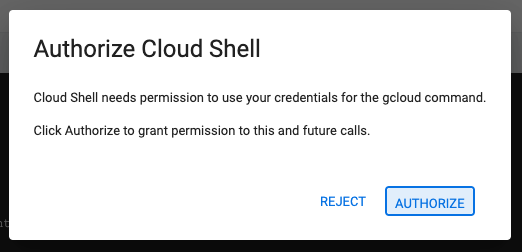
Click Authorize. The scripts create the service account and workload identity pool with the necessary permissions.
-
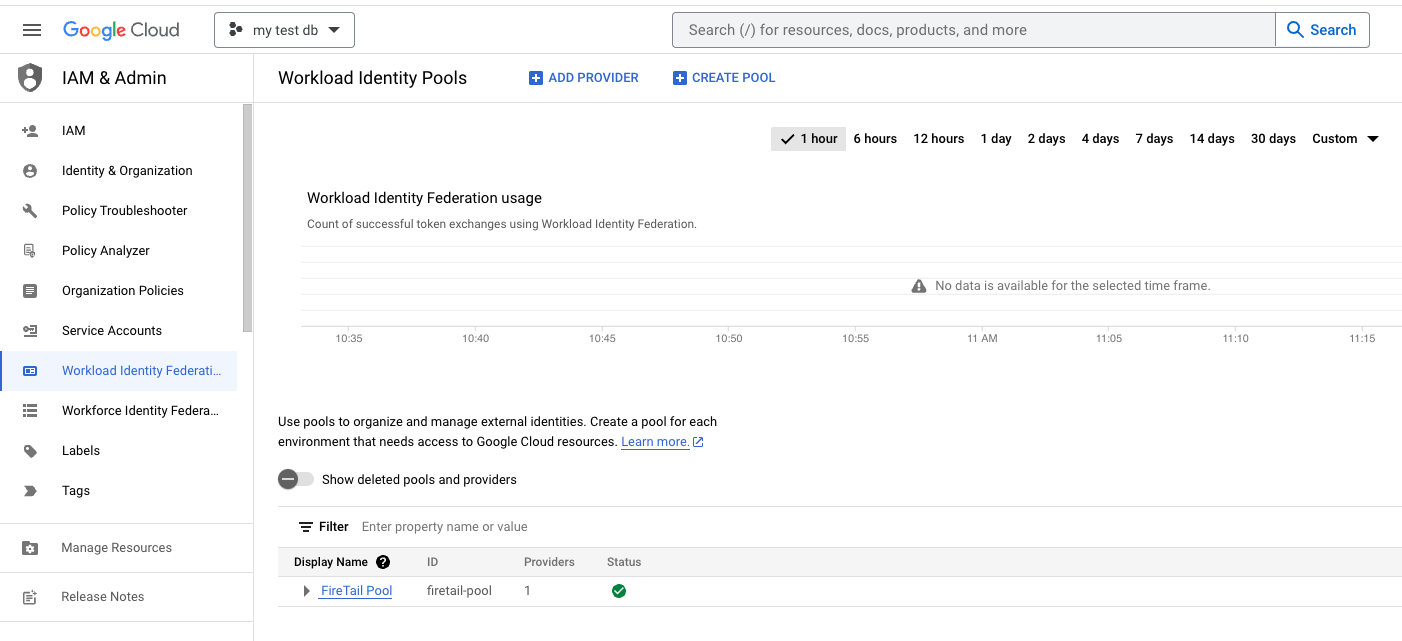
The service account email and Pool ID should be copied and pasted it into the Google Service account and Workload Identity Pool ID fields respectively in the FireTail platform. This information can be found in the generated return of the script. Alternatively locate the information in the Google Cloud console. Search for service account and open the newly created one, copy the email address. For the Pool ID, open the Workload Identity Federation and copy the Pool ID.
- Return to the Google Cloud Inventory Scanning integration form in the FireTail platform to complete the integration.
- In the FireTail platform, select a project from the dropdown, or click Create to create a new project. This is the project that will be associated with the integration. When you complete the integration this adds the discovered resources under the FireTail project that you choose. Learn more about projects here.
- Enter a Scan Frequency. This is how often the scan is done in hours, minimum is 24 hours.
- Click Submit.
View discovered resources
The discovered AI resources can be viewed going to Workload in the side menu.