

Microsoft 365
Updated: September 8, 2026
The Microsoft 365 integration enables FireTail to automatically scan and discover AI consumption within your Microsoft 365 environment, providing enhanced visibility and control over your AI workforce, as well as supporting real-time monitoring and security management.
Before you begin, make sure you can sign in as a Microsoft 365 Global Administrator or Privileged Role Administrator. Authentication is a single step: one sign-in window grants tenant-wide consent and connects the integration. You do not need to look up or enter your tenant ID — FireTail reads it from the sign-in.
To set up the integration:
- In the side menu, go to Settings, then select Integrations.
- Click Create Integration. Filter by selecting the Discovery category.
- Select Microsoft 365.
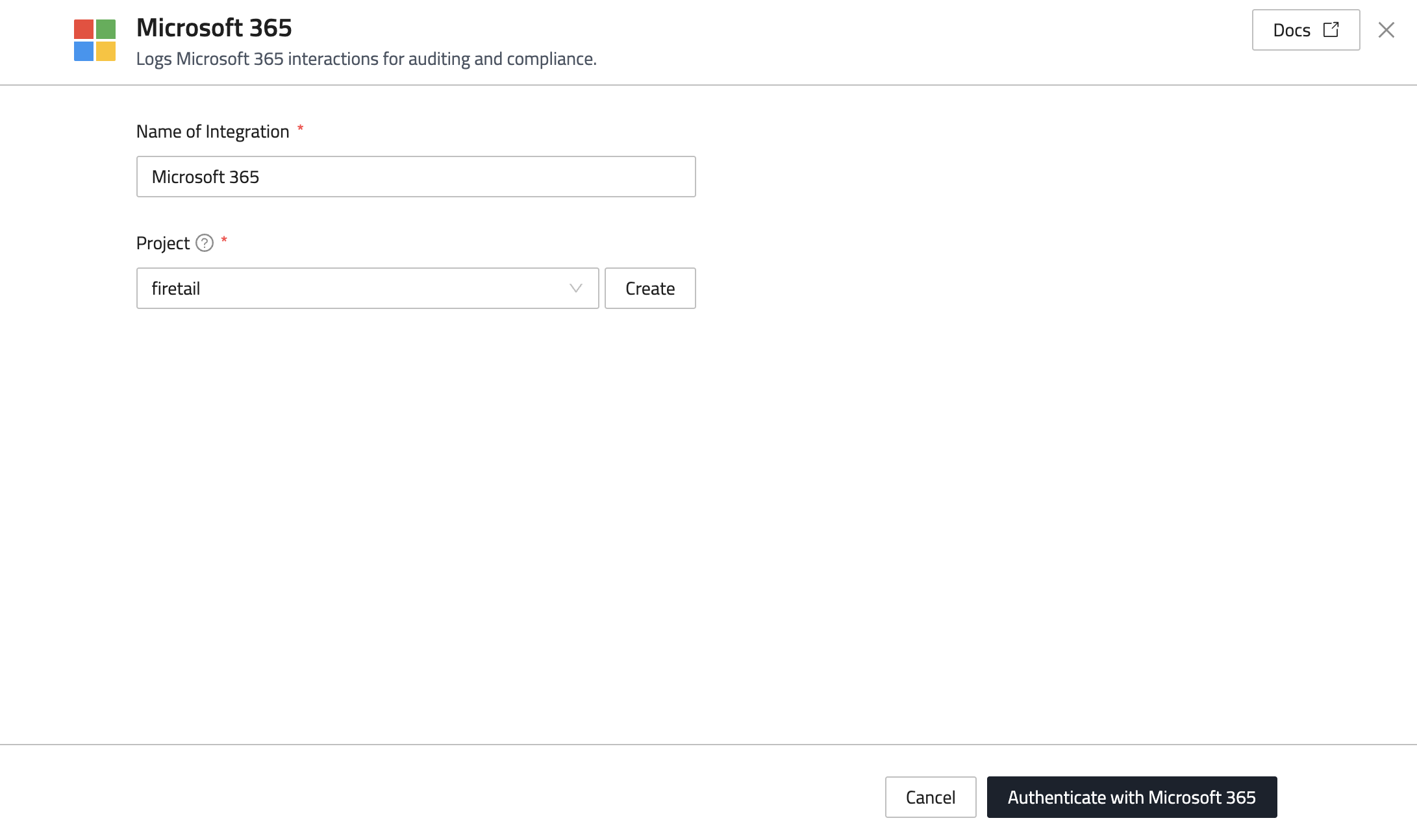
- In the Name of Integration field, enter a name for the integration.
- Select a project from the dropdown, or click Create to create a new project. This is the project that will be associated with the integration. The integration will discover employees through SSO logins and email signups.
- Click Authenticate with Microsoft 365.
- A pop-up window opens. Log in to Microsoft 365 as a Global Administrator or Privileged Role Administrator (if required).
- On the consent screen, tick Consent on behalf of your organization, then click Accept.
The pop-up closes and returns you to FireTail. The integration is then set up and begins scanning.
Ticking Consent on behalf of your organization is what makes the grant tenant-wide. If it is not ticked, consent applies only to the account you signed in with and the integration cannot be created.
Permissions requested
FireTail requests the following Microsoft Graph permissions during consent:
| Permission | Used for |
|---|---|
openid, profile, email |
Signing in and identifying the tenant that granted consent |
offline_access |
Continuing to scan without requiring you to sign in again |
User.Read |
Reading the signed-in administrator's profile |
Mail.Read |
Discovering employee sign-ups to AI services from email |
Directory.Read.All |
Discovering employees and groups in your directory |
Application.Read.All |
Discovering applications registered in your tenant |
AuditLog.Read.All |
Discovering SSO logins to AI services from sign-in logs |
Reauthenticate the Integration
If you need to update the permissions granted to FireTail, you can reauthenticate the integration:
- Go to the Existing Integrations tab. Locate the Microsoft 365 integration you previously set up. Click the integration, then click Re-authenticate with Microsoft 365. Complete the authorization flow to refresh access and permissions.
Reauthenticating uses the same single sign-in window as the initial setup.
Troubleshooting
A tenant administrator must grant consent
If setup fails with a message stating that a Microsoft 365 tenant administrator must grant consent, the account you signed in with either is not a tenant administrator or did not consent on behalf of the organization.
Retry the authentication, signing in as a Global Administrator or Privileged Role Administrator, and make sure Consent on behalf of your organization is ticked on the consent screen before you accept.
The service principal name is already present for the tenant
This means an existing FireTail service principal (enterprise application) in your tenant is blocking the new consent — for example, one left over from a previously removed integration. An administrator must remove it before you retry.
The error message shown in FireTail includes the FireTail application ID to look for. Using that application ID, remove the service principal in one of the following ways:
-
Azure portal: go to Microsoft Entra ID > Enterprise applications, set Application type to All applications, search for the application ID, open it, then go to Properties > Delete.
-
Azure CLI:
az ad sp delete --id <application-id> -
PowerShell:
Remove-MgServicePrincipal -ServicePrincipalId (Get-MgServicePrincipal -Filter "appId eq '<application-id>'").Id
Removing the service principal revokes FireTail's consent and any FireTail role assignments in your tenant. It does not affect any other application, and it does not delete any of your data. Conditional Access policies that reference FireTail by name will need to be re-pointed after you reconnect.
Once it has been removed, retry the integration setup from step 6 above.
The authentication window does not open
FireTail opens the sign-in window when you click Authenticate with Microsoft 365, so most browsers allow it. If your browser is configured to block all pop-ups, FireTail shows a Popup blocked by browser message.
To allow pop-ups for the FireTail app domain:
- In Chrome, click the padlock icon to the left of the address bar, then select Site settings.
- Set Pop-ups and redirects to Allow.
- Return to FireTail and click Authenticate with Microsoft 365 again.
View discovered resources
The discovered AI resources can be viewed going to Workforce in the side menu.