

How do I download information from the FireTail platform?
Updated: August 18, 2026
You can download CSV files in most areas of the platform.
Click the download button and select what data will be included in the download. The data that can be downloaded is dependent on what area of the platform you are downloading data from.
Note: You can edit the total number of items downloaded.
Dashboard charts work slightly differently: instead of a Download button and an attribute picker, each chart has a download icon beside its title that exports the data the chart is currently showing.
Here are some examples:
Download findings data
-
In the side menu, go to Posture Management and select the Findings tab.
-
Click Download.
-
Select which attributes to include:
- ID
- Name
- Description
- Remediation
- Code
- Context
- Date Added in Microseconds
- Creation Time
- Tags
- Events
- Severity
- Resources
- Status
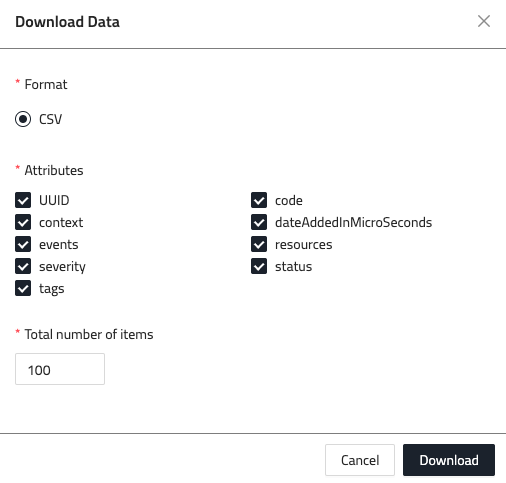
- Enter the number of items to be included in the CSV file (the number of Findings).
- Click Download.
Download events data
-
In the side menu, go to Settings then select Events.
-
Click Download.
-
Select which attributes to include:
- ID
- Name
- Description
- Code
- Context
- Date Added in Microseconds
- Date Occurred in Microseconds
- Creation Time
- Organization ID
- Resources
- Version
- Source
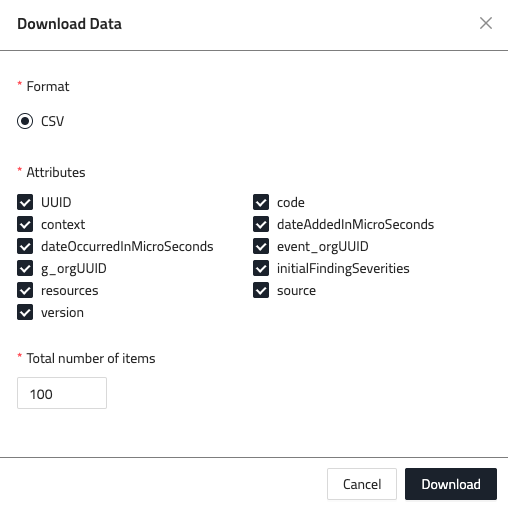
- Enter the number of items to be included in the CSV file (the number of Events).
- Click Download.
Download AI models data
-
In the side menu, go to Workload then select Models.
-
Click Download.
-
Select which attributes to include:
- ID
- Name
- Provider
- Item Type
- Status
- Version
- Framework
- Hosting
- Source
- Platform
- Creation Time
- Date Added in Microseconds
- Date Modified in Microseconds
- Fine Tuned
- Metadata
- Risk Score
-
Enter the number of items to be included in the CSV file (the number of Models).
-
Click Download.
Download AI prompts data
-
In the side menu, go to Workload then select Prompts.
-
Click Download.
-
Select which attributes to include:
- ID
- Name
- Description
- Item Type
- Response Format
- Static
- Status
- Temperature
- Variables
- Metadata
- Creation Time
- Date Added in Microseconds
- Date Modified in Microseconds
-
Enter the number of items to be included in the CSV file (the number of Prompts).
-
Click Download.
Download dashboard chart data
- In the side menu, go to Dashboards, then select the Workforce Usage indicator.
- Set the period you want with the duration selector in the top right.
- Narrow the chart if you want to: click entries in the chart's key to plot only those series, and use the metric toggle on Top Employees and Top Devices.
- Click the download icon beside the chart title.

The CSV contains what the chart is showing at the time you click, and the file is named after the chart and the period it covers.
Learn more about the Workforce Usage dashboard.