
Create an AI Resource Policy
Updated: July 31, 2026
Resource policies enable you to define automated monitoring policies that scan your infrastructure for changes. These policies act as monitors that detect when resources are added, modified, or meet specific criteria, and they trigger alerts when changes are detected.
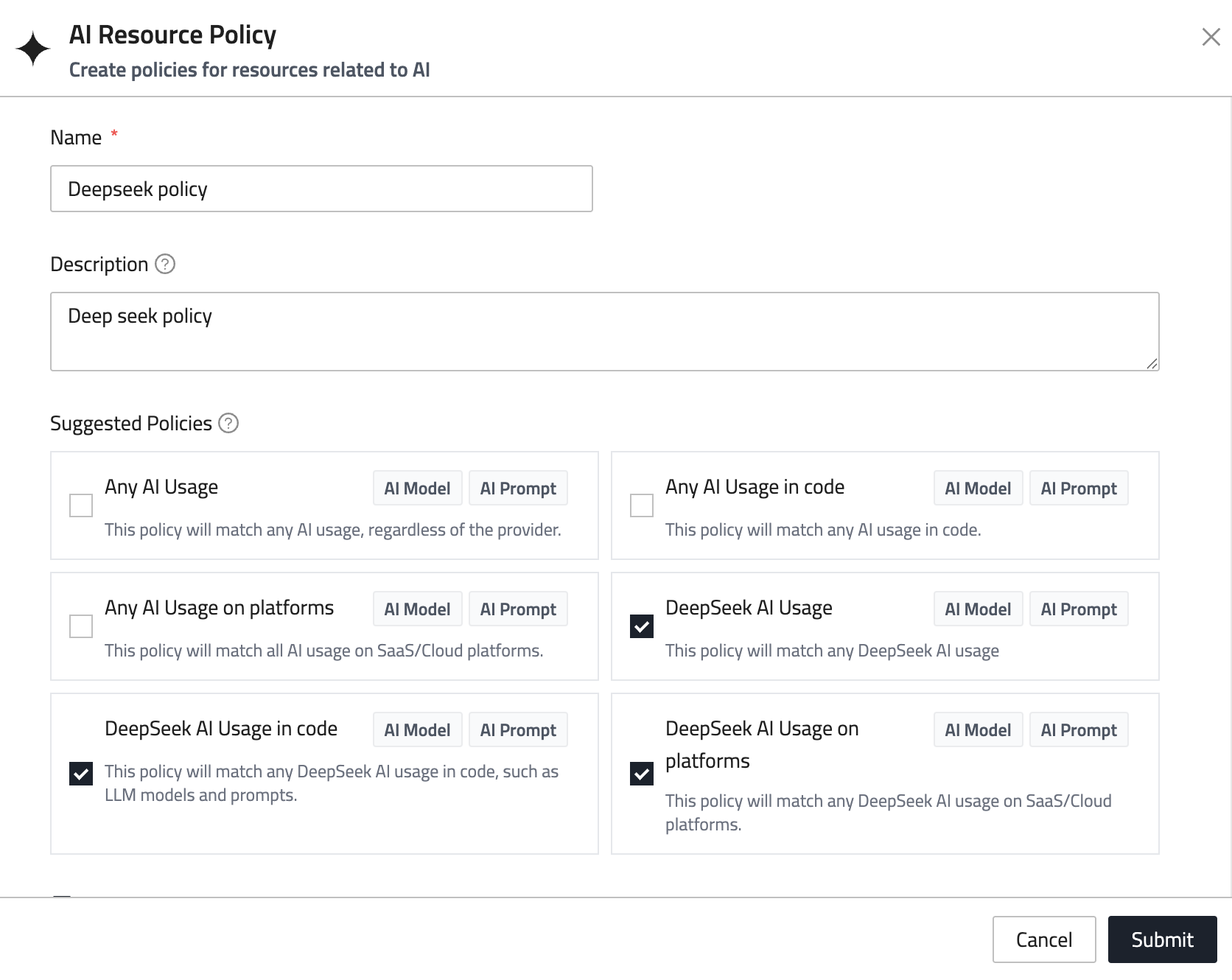
- In the side menu, go to Posture Management and select the Resource Policies tab, then the Custom tab.
- Click Create Resource Policy.
- Under Configuration, enter a name for your policy (e.g.,
"DeepSeek usage policy"). - Enter a description for the resource policy.
Checks
A policy is made up of checks. Each check is a resource type plus a set of conditions that a resource of that type has to match.
- A resource is flagged when it matches any one check in the policy.
- Within a single check, every condition has to match.
The Checks panel shows the count of checks in the policy, and warns you while a policy has none — a policy with no checks will not flag anything.
Add a check
Click Add check and choose where the check comes from:
- Suggested check — checks FireTail provides for common misconfigurations.
- Saved filter — reuse a filter your organization has already saved.
- Custom check — pick a resource type and write your own conditions.
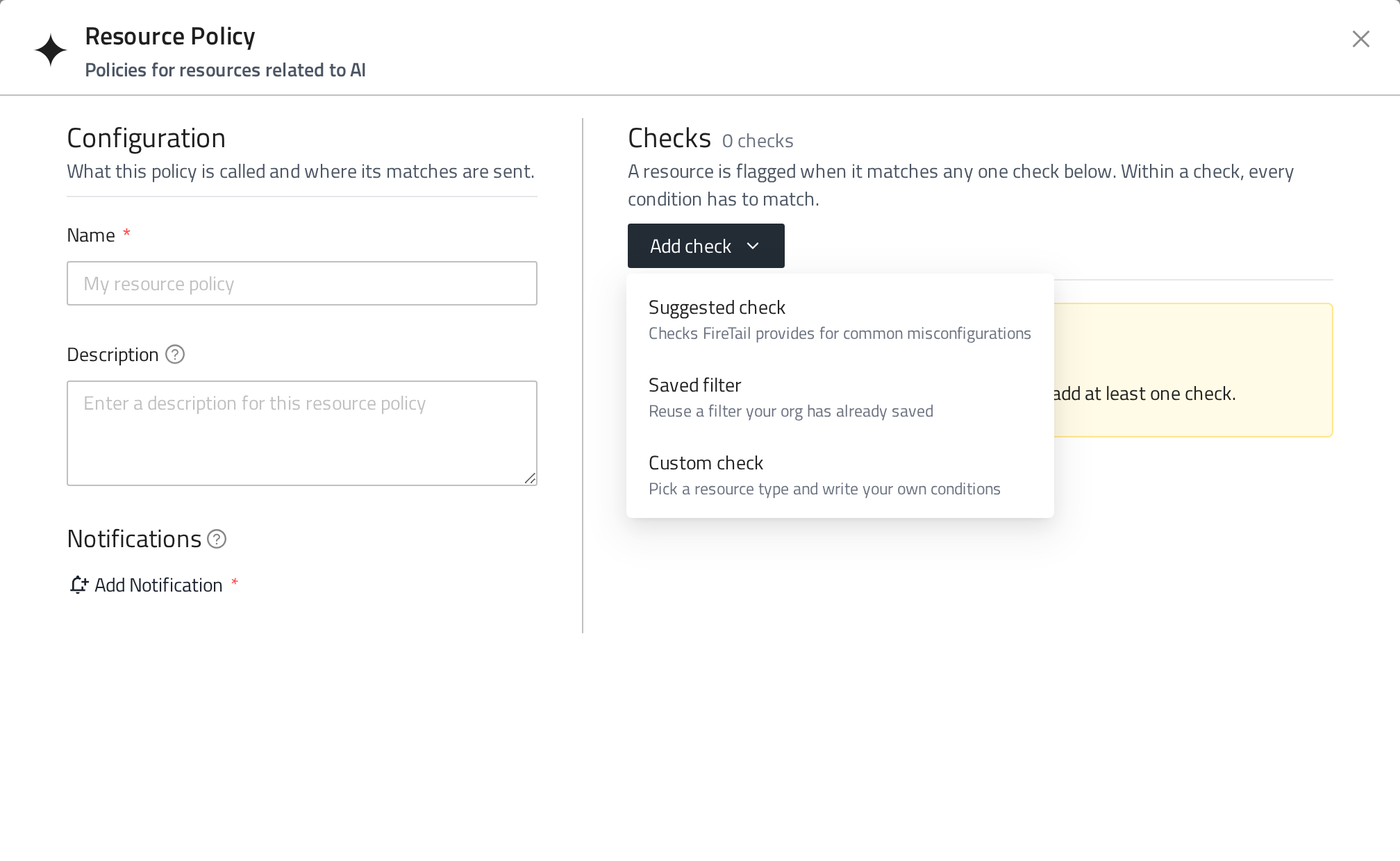
You can add up to 10 checks from each source. A source that has reached its limit is greyed out in the menu and says so.
Suggested checks
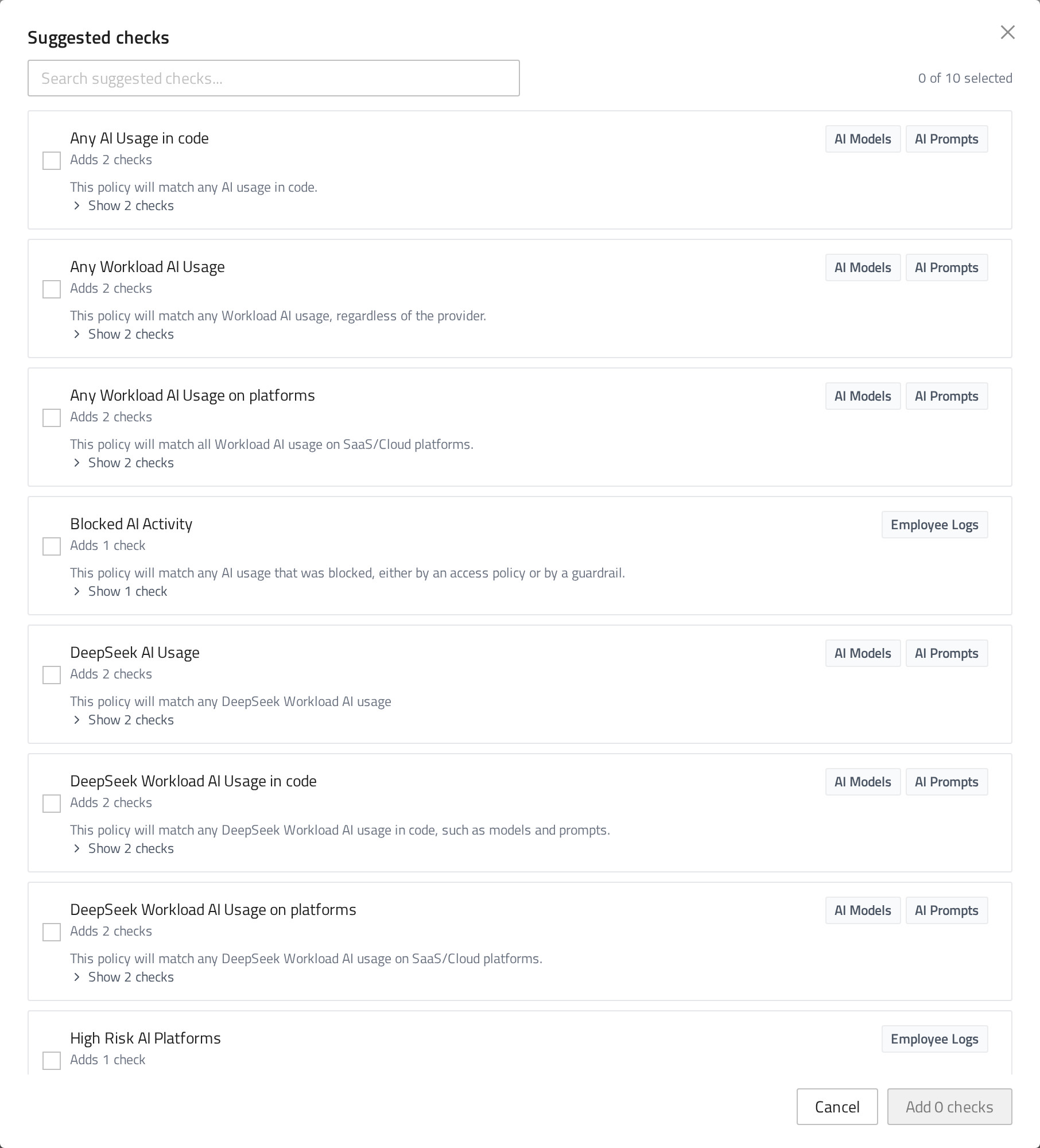
The picker lists the checks FireTail provides, with a search box and the resource types each one covers. A single suggested check can cover more than one resource type, so each row says how many checks it adds, and the confirm button totals them up (for example, Add 2 checks).
AI resource policy templates
- Any AI Usage – Monitors any AI usage, regardless of provider (tracks both AI Models and AI Prompts).
- Any AI Usage in code – Detects AI usage specifically within code implementations.
- Any AI Usage on platforms – Monitors AI usage on SaaS/Cloud platforms.
- DeepSeek AI Usage – Monitors any DeepSeek AI usage across your environment.
- DeepSeek AI Usage in code – Detects DeepSeek AI usage in code, including LLM models and prompts.
- DeepSeek AI Usage on platforms – Monitors DeepSeek AI usage on SaaS/Cloud platforms.
Saved filters
Reuse a filter your organization has already saved to apply an existing configuration and keep monitoring consistent. The picker opens empty and adds to the checks already in the policy, so selecting a second saved filter does not replace the first.
Custom checks
- Choose a Resource Type, for example AI Model, AI Prompt or AI Finding.
- Click Submit.
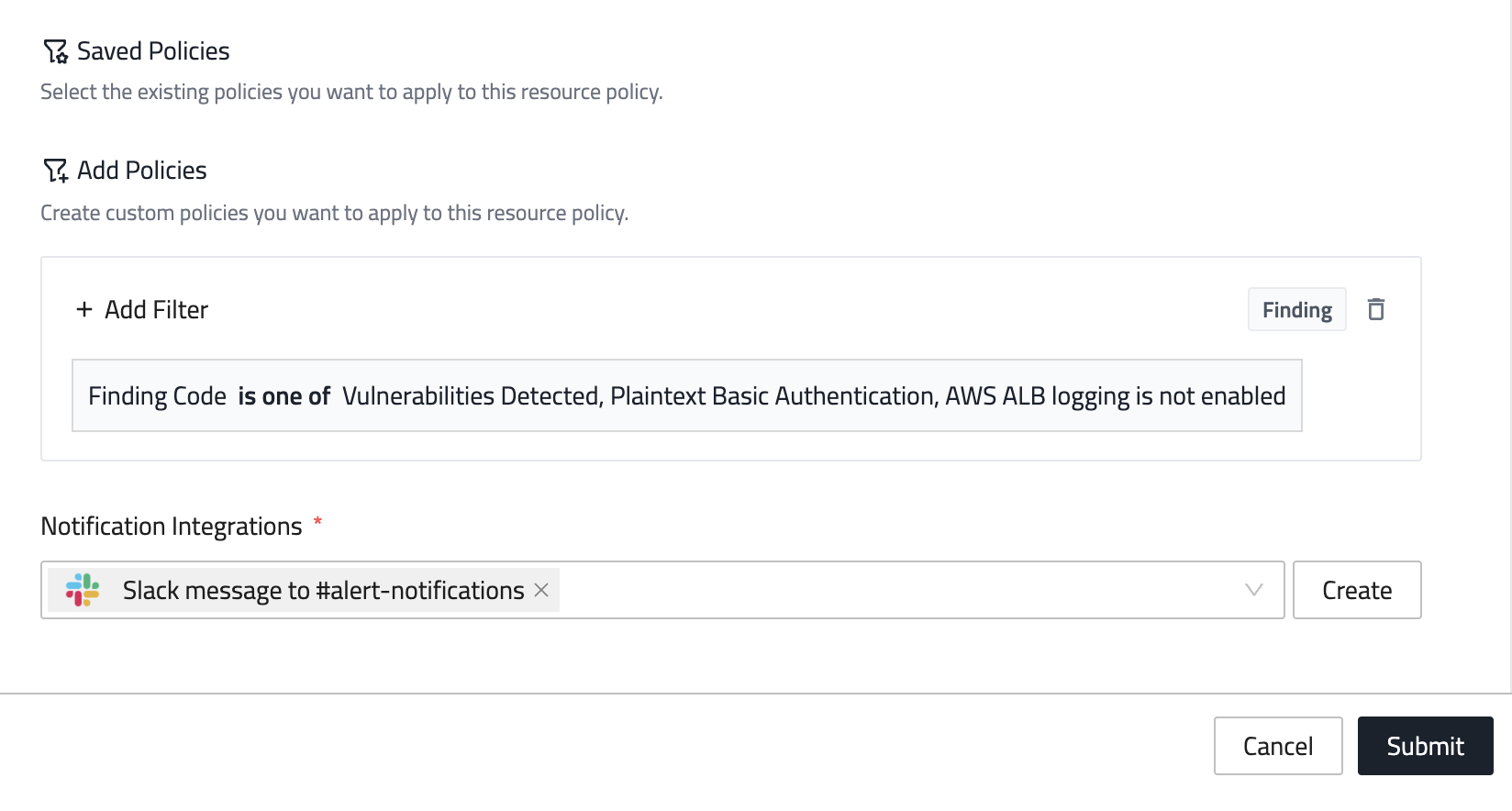
- Click Add Filter on the new check and define the condition using field, operator, and value.
Reading the checks list
Checks are grouped under the resource type they apply to, and each group shows how many checks it holds. Where a resource type carries more than one check, the group says so explicitly — those checks are independent, and matching any one of them is enough.
Every check carries a badge showing where it came from — Suggested, Saved or Custom — along with the name of the suggested check or saved filter behind it. Custom checks stay editable in place; suggested and saved checks are read-only.
Remove a check
Click the trash icon on the check. Removing a check contributed by a suggested check removes the whole suggestion, so the other checks it contributed are kept as custom checks and the platform tells you when that happens.
Add notification method
- In the Notifications section, click Add Notification.
- Choose a previously created integration (Slack, email, webhook, etc.).
- Click Create to configure a new integration if needed.
Note: Notifications are triggered only when a change is detected between the current scan and the previous scan. If no changes are found, no notification is sent.
Finalize
- Click Submit to save and activate the policy.
History
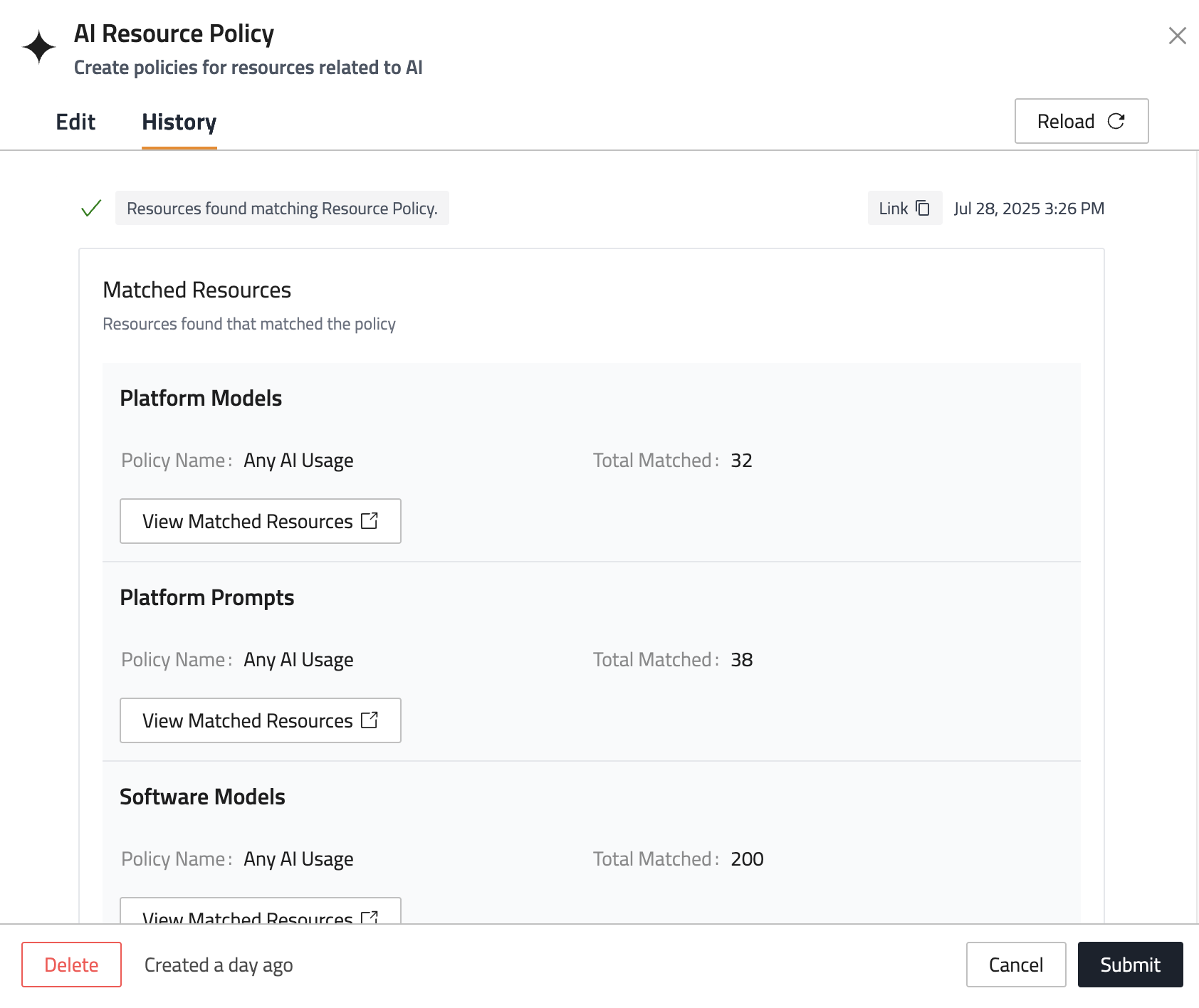
Each resource policy you create includes a History tab where you can view a record of past scans performed by the policy.
- The History tab is accessible in existing Resource Policies.
- Each entry shows the date and time the scan was executed and indicates "Resources found matching Resource Policy".
- History entries are only created when new matching resources are found - scans with no matches don't generate history records.
- Each history entry shows matched resources grouped by resource type (e.g., Platform Models, Platform Prompts, Software Models).
- For each resource group, you can see the policy name that matched, total count of matched resources, and a "View Matched Resources" button to see the specific items.