

SCIM
Updated: July 31, 2026
The SCIM integration enables your Identity Provider (IdP) to automatically provision and manage AI Workforce employees and groups in FireTail using the SCIM 2.0 standard. Once configured, your IdP (e.g. Microsoft Entra ID) can create, update, deactivate, and group users in FireTail without manual user administration. To set up the integration:
- In the side menu, go to Settings, then select Integrations.
- Search for SCIM, or first filter by selecting the Discovery category.
- Select SCIM.
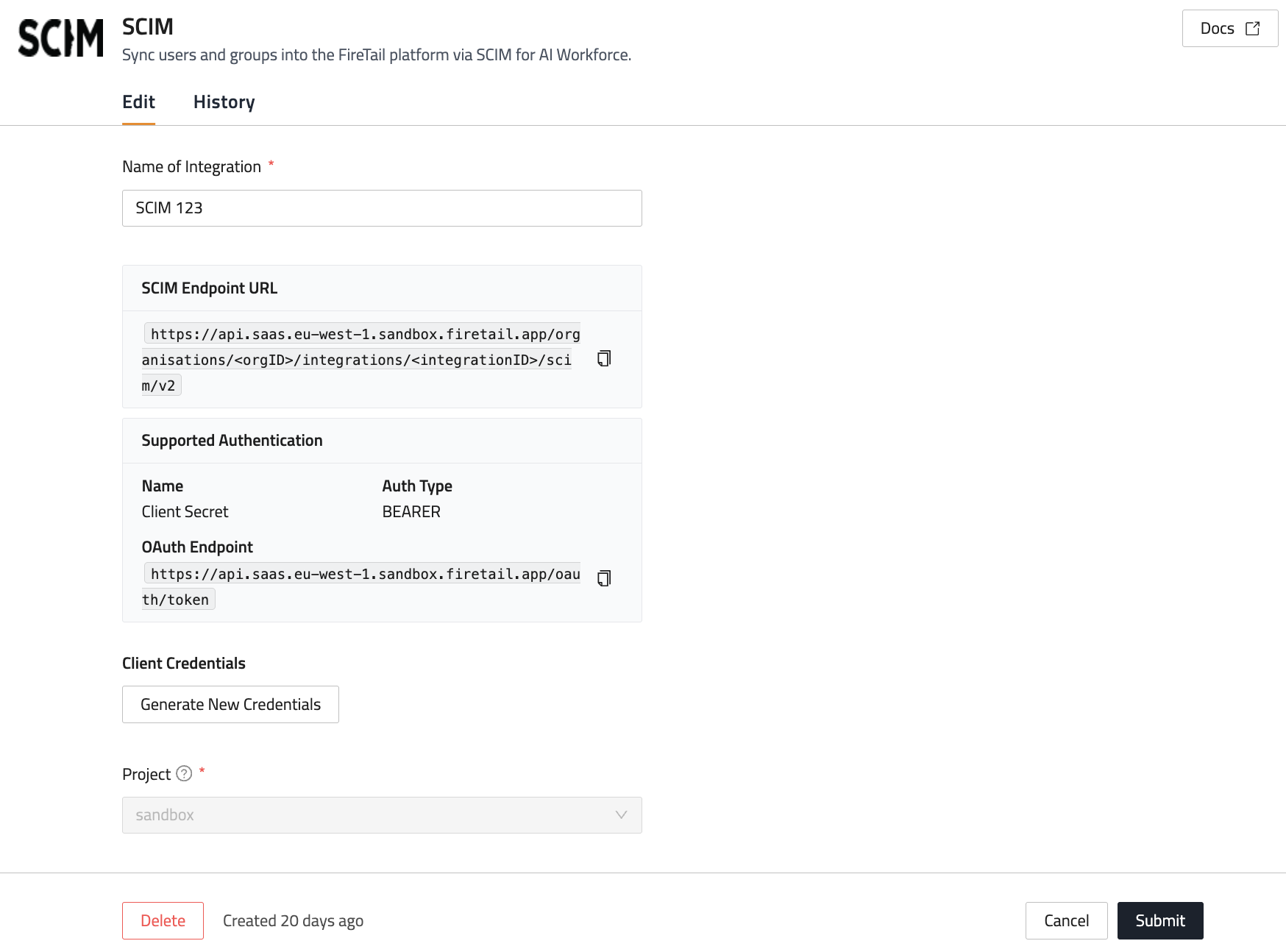
- In the Name of Integration field, enter a name for the integration.
- Copy the SCIM Endpoint URL, then paste it into the relevant field (e.g. Tenant URL) in your IdP provisioning application.
- Check the Auth Type under Supported Authentication, and set the authentication method in your IdP provisioning application to match.
- Copy the OAuth Endpoint under Supported Authentication, then paste it into the relevant field (e.g. Token Endpoint) in your IdP provisioning application.
- Click Generate New Credentials:
- Client Credential Name: Enter a descriptive name for these credentials.
- Description: Enter a description for these credentials.
- Click Submit.
- Copy the generated Client ID and Client Secret, then paste them into the relevant fields in your IdP provisioning application.
- Select a project from the dropdown, or click Create to create a new project. This is the project that will be associated with the integration. Learn more about projects here
- Click Submit.
View discovered resources
The discovered AI resources can be viewed by going to Workforce in the side menu and selecting Employees or Groups.