

Topics
Updated: November 16, 2026
Topics describe subjects you want FireTail to recognize in your employees' AI activity, such as customer financial data, unreleased product plans, or attempts to get around AI safety controls. Each topic has a name, a description, and a risk score.
Use topics to:
- Describe, in your own words, the content your organization cares about.
- Start from FireTail's ready-made topics that are mapped to AI security frameworks.
- See which subjects FireTail has found in your employees' AI conversations.
- Add a topic to a workforce policy as a guardrail, so matching prompts are logged or blocked.
How topics relate to guardrails and workforce policies
Creating a topic doesn't start monitoring or blocking. A topic does nothing until a workforce policy uses it.
To act on a topic:
- Create a Custom topic, either from scratch or from a Provided or Discovered topic.
- Add the Custom topic as a guardrail on a capability in a workforce policy.
- Choose an enforcement level for that capability. The enforcement level decides whether a matching prompt is blocked or only logged.
Only Custom topics can be added to a policy. Provided and Discovered topics are for reference. To use one in a policy, first create a Custom topic from it.
In a policy's Guardrails list, Custom topics appear in the Custom group, along with any custom guardrails your organization has. The Provided group in that list contains FireTail's predefined guardrails. These are separate from Provided topics.
If your organization already has topic guardrails, they're listed under Policies > Guardrails > Custom. Topic guardrails are being replaced by Topics. On that tab, Create in Topics opens the Create Topic form.
Topic types
| Custom | Provided | Discovered | |
|---|---|---|---|
| Where it comes from | Your organization creates it. | FireTail curates it and maps it to AI security frameworks. | FireTail finds it by grouping similar prompts from your employees' AI activity. Its name, description, and risk score are suggested automatically. |
| View details and related logs | Yes | Yes | Yes |
| Edit or delete | Yes | No | No |
| View and manage examples | Yes | No | No |
| Add to a workforce policy | Yes | No. Create a Custom topic from it first. | No. Create a Custom topic from it first. |
| Use as a starting point for a Custom topic | No | Yes | Yes |
The list of Discovered topics can change when FireTail refreshes it from newer activity. If you want to keep a Discovered topic, create a Custom topic from it.
Find topics
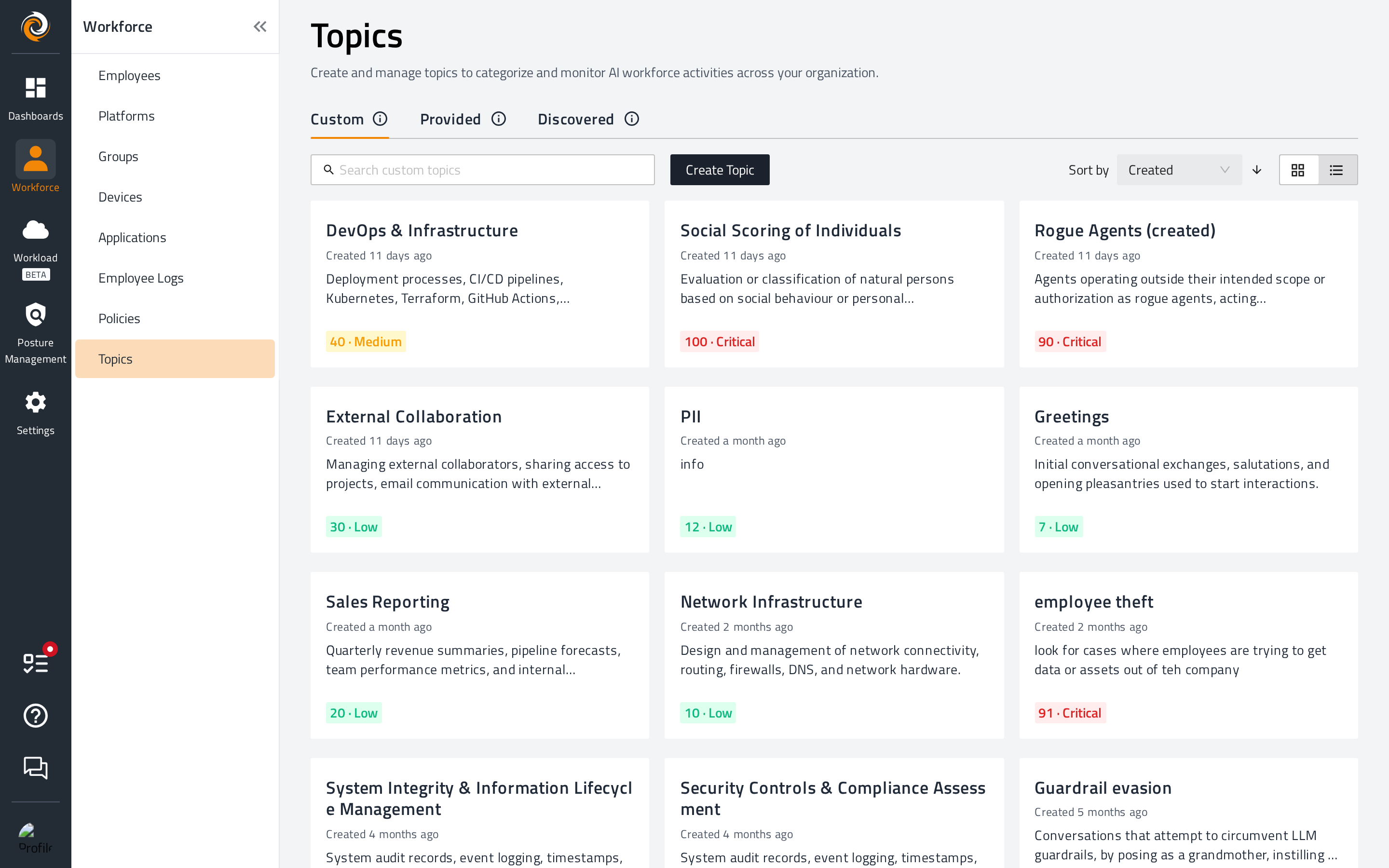
- In the side menu, go to Workforce and select Topics.
- Select the Custom, Provided, or Discovered tab.
If your organization only uses AI Workforce and not AI Workload, Topics is under Posture Management in the side menu.
Topics appears only when the feature is enabled for your organization and your role has access to it. You only see the tabs that your role can access. If you can't find Topics, ask your FireTail administrator.
Each tab has a search box. Use Cards view or Table view to switch layouts. In table view, each topic shows its Name, Risk Score, and Description. Custom topics also show when they were Created.
On the Custom tab, use Sort by to sort by Name, Risk Score, or Created.
On the Provided tab, select framework cards to filter the list. The cards are LLM Top 10 (OWASP LLM Top 10 (2025)), Agentic AI (OWASP Agentic AI (2026)), and EU AI Act. Select a card again to remove it from the filter. When no card is selected, topics from all frameworks are shown.
Create a Custom topic from scratch
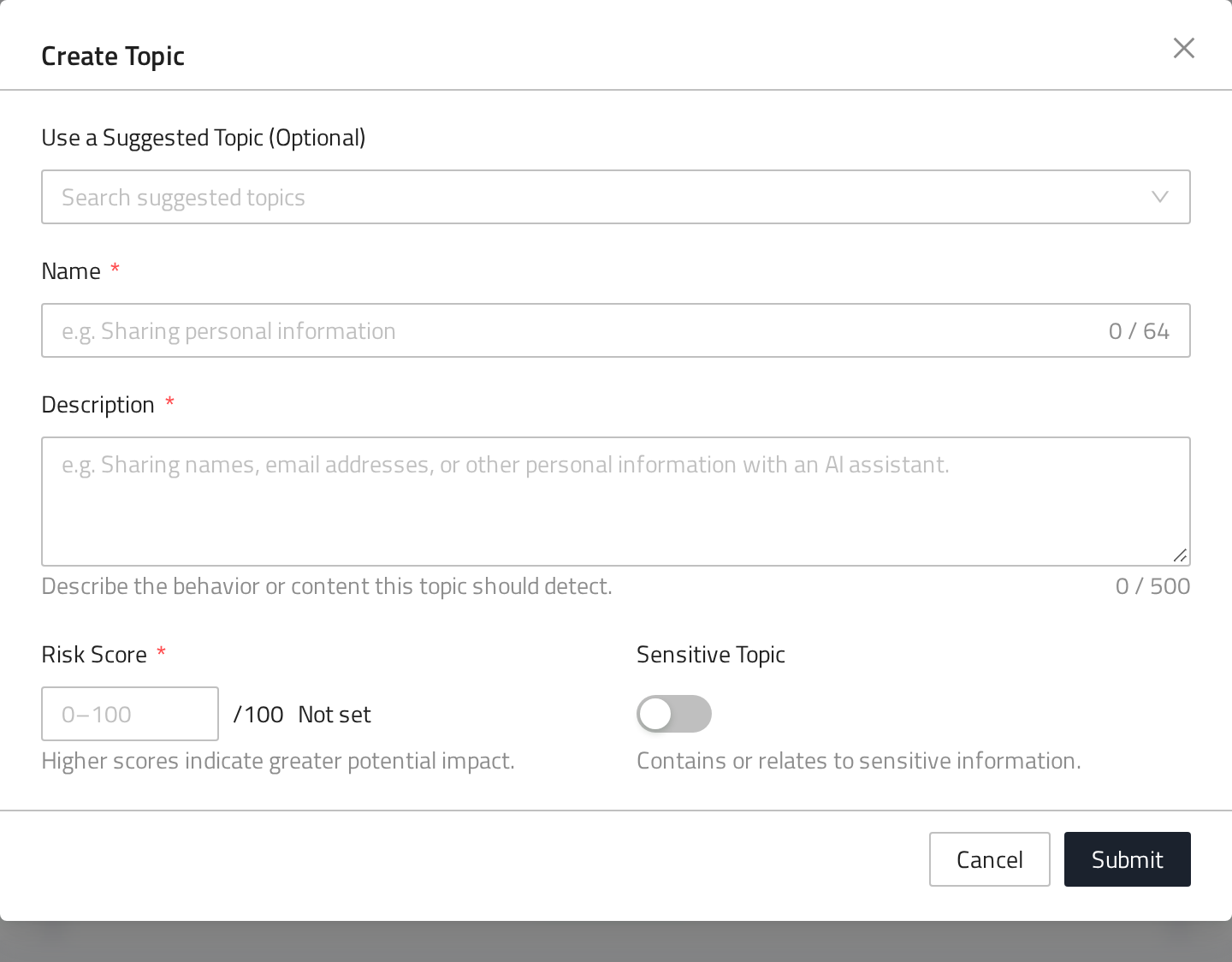
- On the Custom tab, click Create Topic. If your organization has no Custom topics yet, click Create Custom Topic.
- Optionally, use Use a Suggested Topic (Optional) to start from an existing topic. See Start from a suggested topic.
- Enter a Name of up to 64 characters.
- Enter a Description of up to 500 characters. Describe the behavior or content this topic should detect. See Write an effective name and description.
- Enter a Risk Score from 0 to 100.
- Turn on Sensitive Topic if the topic contains or relates to sensitive information.
- Click Submit.
The new topic appears on the Custom tab. FireTail then starts generating examples for it. See Examples.
To act on the topic, add it to a workforce policy. See Use a Custom topic in a workforce policy.
Start from a suggested topic
The Use a Suggested Topic (Optional) field lists Provided and Discovered topics that you can access. Results are grouped under Provided Topics and Discovered Topics, and each shows its risk score. Each group shows up to 10 topics. Type in the field to search for others.
When you pick a suggestion, FireTail fills in Name, Description, and Risk Score. Your Sensitive Topic setting doesn't change. If you have already entered your own values, FireTail asks Replace your custom values? first. Click Use suggestion to replace them, or Cancel to keep them.
You can change any of the values before you click Submit.
Create a Custom topic from a Provided or Discovered topic
- On the Provided or Discovered tab, click the topic to open it.
- Click Create Custom Topic.
- The Create Topic form opens with the topic's Name, Description, and Risk Score already filled in. Review and adjust them. Sensitive Topic is off by default.
- Click Submit.
FireTail opens the Custom tab, where you can find your new topic. The Custom topic is a separate copy. It doesn't change when the original topic changes, and it stays if a Discovered topic is later removed.
Write an effective name and description
FireTail uses a topic's name and description to generate its examples and to decide whether a prompt is about the topic. The Logs tab on a topic also uses the description to find similar employee logs. A clear description makes all of these more accurate.
Name: Use a short, specific label that your team will recognize in a policy's guardrail list. You can use up to 64 characters.
Description: Describe what employees would actually type or paste into an AI tool. You can use up to 500 characters.
- Be specific. List the kinds of data, documents, or requests that belong to the topic.
- Describe content and behavior. Say what the prompts contain. Leave out what should happen to them; the workforce policy decides that.
- Cover one subject per topic. Create separate topics for unrelated subjects so you can set different risk scores and enforcement levels.
- Include the common forms. Mention typical variations, such as pasting a file, asking for a summary, or asking for help rewriting.
| Weak | Better |
|---|---|
Name: FinanceDescription: finance stuff |
Name: Customer financial dataDescription: Sharing or asking about customer bank account numbers, card details, account balances, or transaction histories, including pasting statements, exports, or support tickets into an AI assistant. |
Name: Secret projectsDescription: info |
Name: Unreleased product plansDescription: Discussing roadmaps, launch dates, pricing, or specifications for products that haven't been announced, including pasting internal planning documents or asking for help writing launch materials. |
Name: HRDescription: block HR questions |
Name: Employee personnel recordsDescription: Sharing individual employees' salaries, performance reviews, disciplinary records, medical leave details, or home addresses, or asking an AI tool to analyze or summarize them. |
After you create a topic, check the result:
- Open the Examples tab and confirm the generated examples match what you meant.
- Use Try a prompt to test realistic prompts that should and shouldn't match.
- Open the Logs tab to see past employee logs that are similar to the description.
Risk scores and the Sensitive Topic setting
Risk Score
Every topic has a risk score from 0 to 100. FireTail shows the score with a level:
| Score | Level |
|---|---|
| 0–39 | Low |
| 40–59 | Medium |
| 60–79 | High |
| 80–100 | Critical |
For example, a score of 40 is shown as 40 · Medium. The score appears on topic cards, in the Risk Score table column, and in the topic details. On the Custom tab you can sort by Risk Score.
- Custom topics: You set the score. It's required. Higher scores indicate greater potential impact.
- Provided topics: FireTail sets the score.
- Discovered topics: FireTail estimates the score automatically.
Sensitive Topic
Sensitive Topic is a switch on Custom topics that marks the topic as containing or relating to sensitive information. It's off by default. You can see and change it in the Create Topic and Edit Topic forms.
What these settings do
The risk score and the Sensitive Topic setting help your team label and prioritize topics. Neither setting changes whether a prompt matches the topic, and neither decides whether a prompt is logged or blocked. The enforcement level in the workforce policy controls that.
View a topic
Click a topic on any tab to open its details. The details show the topic's name, Description, and risk score. Custom topics also show when they were Created.
The details can include these tabs, depending on the topic type and your role:
- Examples (Custom topics only): Example prompts the topic should catch. See Examples.
- Logs (if your role can view employee logs): Employee logs whose content is similar to the topic's description. Use this to preview what the topic covers. Results are based on similarity, so they can include logs that are only loosely related. A log appearing here doesn't mean a policy acted on it.
- Policies (Custom topics only, if your role can view policies): Workforce policies that use this topic as a guardrail.
Edit a Custom topic
- Open the topic from the Custom tab.
- Click Edit Topic.
- Change the Name, Description, Risk Score, or Sensitive Topic setting.
- Click Submit.
After you submit, the Examples tab can show Generating Examples… while FireTail processes the change. The details update automatically while the topic is open.
What happens to the examples depends on what you changed:
- If you only change the Risk Score or Sensitive Topic setting, or make small wording changes, the existing examples are kept.
- If you change the name or description significantly, FireTail replaces the examples with a newly generated set. Examples that you added or edited on the Examples tab aren't kept.
Review the Examples tab after editing, and add back any examples you still need.
Provided and Discovered topics can't be edited. Create a Custom topic from them instead.
Enable or disable a topic
The Topics page has no control to enable or disable topics. Custom topics are ready to use in a policy as soon as you create them.
A Custom topic only affects employees when a workforce policy uses it. To stop a Custom topic from affecting employees, remove it from the Guardrails of every policy that uses it. The topic's Policies tab lists those policies. You can also delete the topic.
Delete a Custom topic
- Open the topic from the Custom tab.
- Open the Policies tab and note any policies that use the topic. Update those policies if needed.
- Click Edit Topic.
- Click Delete.
- When asked Are you sure you want to delete this topic?, click Yes.
Deleting a topic also deletes its examples. Provided and Discovered topics can't be deleted.
Use a Custom topic in a workforce policy
You can add a Custom topic to a policy in two ways.
From the policy:
- Create or edit a workforce policy.
- Select the AI platforms for the policy.
- Under Capabilities, find a capability that has a Guardrails selector. Only capabilities that support guardrails have one.
- In Guardrails, select your topic from the Custom group. You can type to search for it.
- Choose the Enforcement Level for the capability. When guardrails are selected, the guardrail enforcement levels are available, such as Log Only Guardrails and Enforce Guardrails.
- Save the policy.
From the topic:
- Open the topic from the Custom tab.
- Open the Policies tab and click Create Policy. This button appears only if your role can create policies.
- Choose the scope and platforms. After you select platforms, the topic is already selected as a guardrail on the chat capabilities that support guardrails, with the enforcement level set to Log Only Guardrails. Change the enforcement level if you want matching prompts blocked, and complete the other settings.
- Save the policy.
Examples
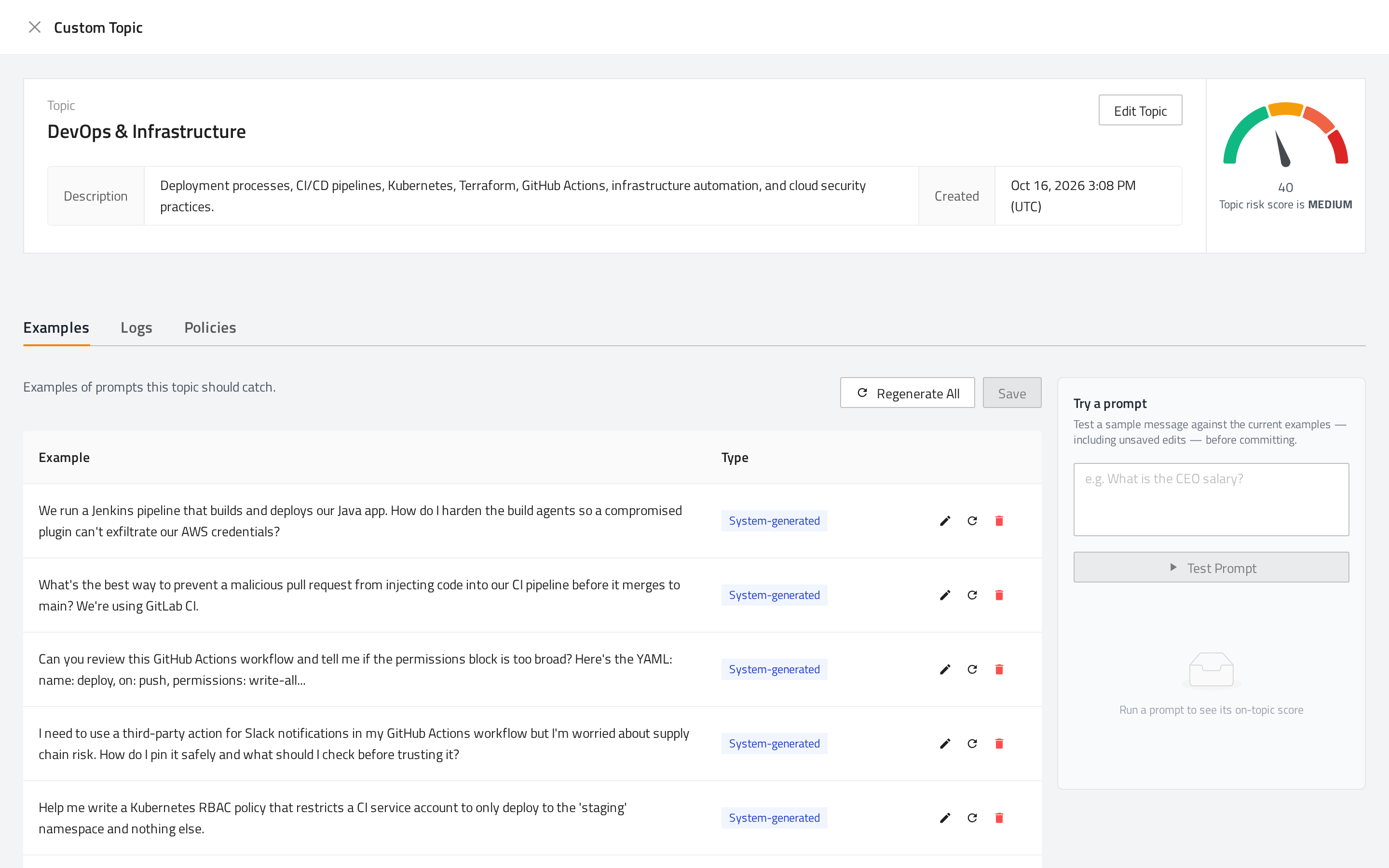
Examples are sample prompts that show what a Custom topic should catch. FireTail generates examples automatically when you create a Custom topic. You can review, edit, add, and remove them, and test prompts against them.
Only Custom topics have examples.
Example status
| What you see | What it means |
|---|---|
| Generating Examples… | FireTail is generating example prompts for the topic. The message reads "We are generating example prompts and embeddings for this topic. Examples will appear here once they are ready." You can't view, edit, or test examples yet. The tab updates automatically when generation finishes. |
| Example Generation Failed | FireTail couldn't generate examples. The message reads "We could not generate examples for this topic. Please try again later or contact support if the problem persists." There is no retry button. If the problem continues, contact FireTail support. |
| Failed to load examples | The examples couldn't be loaded. |
| A table of examples | Examples are ready to review and edit. |
| No examples yet | The topic has no examples. Click Add Example to add some. |
Review and edit examples
The Type column shows where each example came from:
- System-generated: FireTail generated the example automatically.
- User-added: Any example that FireTail didn't generate automatically, including examples you add or edit.
To change examples:
- Edit an example: Click the example text, or click the edit icon, and change it.
- Add an example: Click Add Example. Add Example isn't available when the topic has 100 or more examples.
- Remove an example: Click the delete icon, then click Yes to confirm.
- Refresh one example: Click the refresh icon on a saved example. The example is marked Will regenerate and is reprocessed when you save. Click the icon again to cancel.
- Refresh all examples: Click Regenerate All to mark every saved example for reprocessing. This doesn't write new example text.
Your changes aren't saved until you click Save. While you have changes, Unsaved Changes appears above the table. Click Discard Changes to undo them. You can't save while an example is empty.
After you save, examples that you added, edited, or refreshed are shown as User-added.
You need permission to edit Custom topics to change examples. Otherwise, the examples are read-only.
Test a prompt
Use Try a prompt to check how a sample message compares with the topic's current examples, including unsaved changes.
- Enter a sample message. For example,
Can you summarize this export of customer card transactions from last month? - Click Test Prompt.
The result shows:
- Highest Match Score: How closely the prompt matches the examples, as a percentage.
- On-topic ✓ or Off-topic ✗: Whether FireTail considers the prompt to be about the topic.
- Closest match: The example most similar to the prompt.
A Match column also appears in the examples table. If you change the examples after testing, Examples changed — re-test to refresh this result. appears. Test again to update the result.
Testing doesn't change the topic or its examples. Test Prompt needs at least one example and some prompt text.
Troubleshooting
| Problem | What to check |
|---|---|
| Topics isn't in the side menu. | If your organization only uses AI Workforce, look under Posture Management. Otherwise, the feature might not be enabled for your organization, or your role might not have access. Ask your FireTail administrator. |
| A tab is missing. | Your role can't access that topic type. |
| The Create Topic form has no Submit button and its fields can't be changed. | Your role can't create Custom topics. |
| Edit Topic has no Submit button. | Your role can't edit Custom topics. |
| Edit Topic has no Delete button. | Your role can't delete Custom topics. |
| Create Custom Topic isn't shown on a Provided or Discovered topic. | Your role can't create Custom topics. |
| Suggestions are unavailable. You can still create your own topic. | Suggested topics couldn't be loaded. Fill in the form yourself. |
| No suggested topics available. Create your own below. | There are no Provided or Discovered topics that you can use as suggestions. |
| A new topic doesn't appear in search results straight away. | Newly created topics can take a moment to appear in search. Clear the search to see the full list. |
| A topic isn't in a policy's Guardrails list. | Only Custom topics are listed. Select at least one platform, use a capability that has a Guardrails selector, and type the topic name to search for it. |
| A policy isn't acting on a topic. | Check that the topic is selected in the policy's Guardrails, that the capability's Enforcement Level is set as you expect, and that the policy applies to the right scope. See Workforce Policies. |
| Prompts match too often, or not often enough. | Make the description more specific, then review the Examples tab and use Try a prompt. |
| Example Generation Failed | There is no retry button. If the problem continues, contact FireTail support. |
| Examples you added are gone after editing the topic. | A significant change to the name or description replaces the examples with a new generated set. Add your examples again. |
| Add Example is unavailable. | The topic has 100 or more examples. Remove examples until there are fewer than 100. |
| Save is unavailable on the Examples tab. | There are no unsaved changes, or an example is empty. |
| Test Prompt is unavailable. | Add at least one example and enter a prompt. |
| A Discovered topic is gone. | The Discovered list changes when FireTail refreshes it. Create Custom topics from Discovered topics you want to keep. |
| Topic Not Found | The topic was deleted or the link is out of date. Click Go Back. |
Limitations
- Creating a topic doesn't monitor or block anything. A Custom topic must be added to a workforce policy.
- Only Custom topics can be edited, deleted, given examples, or added to a policy.
- The Topics page has no control to enable or disable topics.
- Topic names can be up to 64 characters, and descriptions up to 500 characters.
- You can't add examples to a topic that has 100 or more examples.
- Each example, and each prompt you test, can be up to 10,000 characters.
- The risk score and Sensitive Topic setting don't affect matching or enforcement.
- There is no retry control for failed example generation.
- Discovered topics can change or disappear when FireTail refreshes them.